1. Informações importantes de segurança
Please read all safety instructions before using the projector. Keep this manual for future reference.
- Não obstrua as aberturas de ventilação. Certifique-se de que haja espaço suficiente ao redor do projetor para uma circulação de ar adequada.
- Avoid direct exposure to the projector lens light.
- Não coloque o projetor perto de fontes de calor ou sob luz solar direta.
- Use apenas o adaptador de energia fornecido com o dispositivo.
- Do not attempt to open or repair the projector yourself. Refer all servicing to qualified personnel.
- Mantenha o projetor longe de água ou outros líquidos.
2. Conteúdo da embalagem
Verifique se todos os itens estão presentes na embalagem:
- Aurzen Roku TV Smart Projector (D1R Cube)
- Cabo de alimentação
- Remote Control (2 AAA Batteries Required, not included)
- Manual do usuário (este documento)
3. Produto acabadoview
The Aurzen D1R Cube is a compact smart projector featuring built-in Roku TV for integrated streaming. It offers 1080P Full HD resolution, Dolby Audio, and a sealed optical engine for enhanced durability and clarity.
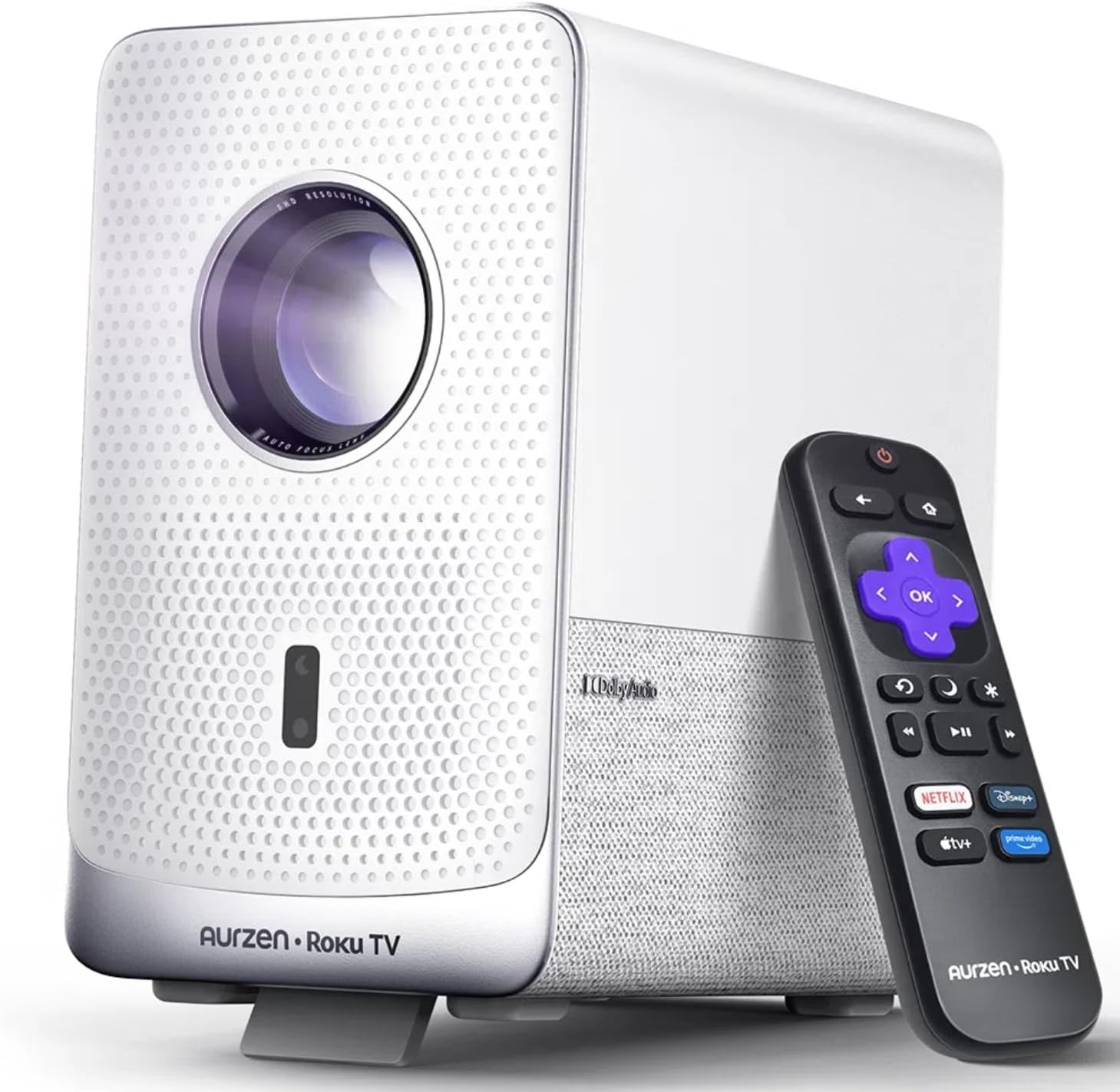
Image: The Aurzen D1R Cube Smart Projector shown with its remote control. The projector is white with a textured front panel and a visible lens.
Principais características:
- Roku TV Built-in: Acesse diretamente os serviços de streaming mais populares.
- Motor Óptico Selado: Protects against dust, maintaining image quality and extending lifespan.
- Resolução 1080P FHD: Proporciona imagens nítidas e claras.
- Áudio Dolby: Provides enhanced sound experience.
- Foco automático e correção trapezoidal: Automatic image adjustment for quick setup.
- Dual-band WiFi & Bluetooth 5.2: For seamless connectivity.
- Apple AirPlay: Effortless content sharing from Apple devices.
- Compatibilidade com casa inteligente: Works with Apple HomeKit, Siri, Alexa, and Google Assistant.

Image: An internal diagram illustrating the sealed optical engine of the Aurzen D1R Cube projector, highlighting its dust-proof design.
4. Configuração
4.1 Colocação Inicial
Coloque o projetor sobre uma superfície plana e estável. Para obter os melhores resultados, o projetor deve ser posicionado corretamente. viewing, position it directly in front of your projection surface (wall or screen). The projector features automatic focus and keystone correction to adjust the image, but a relatively straight angle is recommended.

Image: A visual representation of the projector's auto-focus and auto-keystone correction features, showing how the image automatically adjusts to create a perfect rectangular display.
4.2 Conexão de Energia
- Conecte o cabo de alimentação à porta de entrada de energia do projetor.
- Ligue a outra extremidade do cabo de alimentação a uma tomada elétrica adequada.
- The projector will power on automatically or can be turned on using the power button on the device or remote.
4.3 Configuração do controle remoto
Insert two AAA batteries (not included) into the remote control. Ensure correct polarity. The remote is pre-paired with the projector.
4.4 Initial Roku TV Setup
Upon first power-on, follow the on-screen instructions to set up your Roku TV. This includes:
- Selecione o seu idioma.
- Connecting to a Wi-Fi network (a stable internet connection is required).
- Activating your Roku account. If you do not have one, you will be prompted to create a free account.
- Installing desired streaming channels.
5. Instruções de operação
5.1 Ligar/Desligar
Pressione o botão liga/desliga no projetor ou no controle remoto para ligar ou desligar o aparelho.
5.2 Roku Home Screen Navigation
Use the directional pad and OK button on the remote to navigate the Roku home screen. Access streaming channels, search for content, and adjust settings.

Image: A screenshot of the Roku TV home screen, displaying various streaming app icons and navigation options.
5.3 Aplicações de Streaming
The Roku TV platform provides access to a wide range of streaming applications such as Netflix, Prime Video, Disney+, Hulu, YouTube, and more. Select an app from the home screen to begin streaming.

Imagem: Uma representação gráficaasing various popular streaming service logos available on the Roku TV platform, including Netflix, Disney+, and Hulu.
5.4 Conectando dispositivos externos
The projector includes HDMI and USB ports for connecting external devices.
- HDMI: Connect gaming consoles, Blu-ray players, or other HDMI-enabled devices. Select the corresponding HDMI input from the Roku TV menu.
- USB: Reproduzir mídia files (fotos, vídeos, músicas) de um dispositivo de armazenamento USB.
5.5 Conectividade Bluetooth
Connect Bluetooth headphones or speakers for an enhanced audio experience.
- Go to the Roku TV settings menu.
- Select 'Remotes & devices' then 'Bluetooth devices'.
- Coloque seu dispositivo Bluetooth no modo de emparelhamento.
- Select your device from the list on the projector screen to pair.

Image: A diagram illustrating the Bluetooth connectivity of the Aurzen D1R Cube projector, showing it connecting to various external audio devices.
5.6 Apple AirPlay
Effortlessly share content from your Apple devices (iPhone, iPad, Mac) to the projector using Apple AirPlay.
- Ensure your Apple device and the projector are connected to the same Wi-Fi network.
- On your Apple device, open the content you wish to share (e.g., photos, videos).
- Toque no ícone AirPlay (usually a rectangle with an upward-pointing arrow).
- Select your Aurzen D1R Cube projector from the list of available devices.

Image: A family watching content projected from an Apple device onto a large screen via Apple AirPlay using the Aurzen D1R Cube projector.
5.7 Controle por voz e integração com casas inteligentes
The projector supports voice control via the Roku mobile app and is compatible with Apple HomeKit, Siri, Alexa, and Google Assistant for broader smart home integration.
- Aplicativo Roku para dispositivos móveis: Download the Roku mobile app to use voice commands, type easily, and control your projector from your smartphone.
- Smart Home Assistants: Link your Roku account to your preferred smart home ecosystem (Apple Home, Amazon Alexa, Google Home) to control the projector with voice commands.
6. Manutenção
6.1 Sealed Optical Engine
The Aurzen D1R Cube features a sealed optical engine designed to prevent dust accumulation on internal components. This reduces the need for routine internal cleaning and helps maintain consistent image quality over time.

Image: A side-by-side comparison showing the difference in dust accumulation between a sealed optical engine (left) and an open optical engine (right) after a period of use.
6.2 Limpeza Geral
- Exterior: Wipe the exterior of the projector with a soft, dry cloth. Do not use abrasive cleaners or solvents.
- Lente: Gently clean the projector lens with a lens cleaning cloth or specialized lens cleaning solution. Avoid touching the lens with your fingers.
- Ventilação: Ensure ventilation openings are clear of dust and debris. Use a soft brush or compressed air to gently clean them if necessary.
6.3 Armazenamento
When not in use for extended periods, store the projector in a cool, dry place, away from direct sunlight and extreme temperatures. Consider using a protective cover or case to prevent dust accumulation.
7. Solução De Problemas
If you encounter issues with your Aurzen D1R Cube projector, refer to the following common solutions:
| Problema | Solução possível |
|---|---|
| Sem energia | Certifique-se de que o cabo de alimentação esteja firmemente conectado tanto ao projetor quanto à tomada elétrica. Teste a tomada com outro aparelho. |
| Sem imagem | Check if the projector is powered on. Verify the input source (HDMI, USB) is correctly selected. Ensure the lens cap is removed. |
| Imagem desfocada | The projector has auto-focus. If the image remains blurry, try repositioning the projector or restarting it to trigger auto-focus again. Ensure the lens is clean. |
| Sem som | Check the volume level on the projector and any connected external audio devices. Ensure Bluetooth audio is correctly paired or external speakers are properly connected. |
| Problemas de conectividade Wi-Fi | Ensure your Wi-Fi router is working. Restart the projector and your router. Verify the Wi-Fi password is correct in the Roku TV settings. |
| O controle remoto não está respondendo | Replace the AAA batteries in the remote control. Ensure there are no obstructions between the remote and the projector. |
For further assistance, please refer to the online support resources or contact Aurzen customer service.
8. Especificações
Detailed technical specifications for the Aurzen D1R Cube Smart Projector:
| Recurso | Especificação |
|---|---|
| Marca | Aurzen |
| Modelo | D1R Cube |
| Resolução máxima da tela | 1920 x 1080 (1080P FHD) |
| Tecnologia de Conectividade | WiFi (Dual-band 2.4G/5G), Bluetooth 5.2, HDMI, USB, Audio |
| Características especiais | Roku TV Smart Projector, Sealed Optical Engine, Dolby Audio, Apple AirPlay, Smart Home Compatibility |
| Peso do item | 5.68 libras |
| Dimensões do produto | 7.42 x 7 x 7.83 polegadas |
| Cor | Branco |
9. Garantia e Suporte
9.1 Garantia do Produto
Aurzen products are covered by a manufacturer's warranty. Please refer to the warranty card included with your product or visit the official Aurzen webConsulte o site para obter os termos e condições específicos da garantia.
9.2 Suporte ao cliente
For technical support, troubleshooting assistance, or warranty claims, please contact Aurzen customer service through their official channels. You can find more information and contact options on the Aurzen Brand Store on Amazon.