1. Introdução
The TABWEE 10.1 Inch WiFi Digital Calendar, Model P10, is an interactive touchscreen display designed to streamline family organization. It integrates calendars, task management, meal planning, and digital photo frame capabilities into a single device. This manual provides detailed instructions to help you set up and utilize all features of your new digital calendar.

Imagem 1.1: The TABWEE Digital Calendar in use, showcasing its calendar interface and mobile app synchronization.
2. Informações de segurança
- Certifique-se de que o dispositivo esteja colocado em uma superfície estável e plana para evitar quedas acidentais.
- Utilize apenas o adaptador de energia fornecido. O uso de adaptadores não autorizados pode danificar o dispositivo e anular a garantia.
- Mantenha o dispositivo longe de água, umidade e temperaturas extremas.
- Do not attempt to open or repair the device yourself. Refer to qualified service personnel for any maintenance or repair needs.
- Keep out of reach of small children to prevent accidental ingestion of small parts or damage to the device.
3. Conteúdo da embalagem
Verifique se todos os itens estão presentes na embalagem:
- TABWEE 10.1 Inch WiFi Digital Calendar (Model P10)
- Adaptador de energia
- Manual do usuário (este documento)
4. Produto acabadoview
Familiarize yourself with the physical components of your TABWEE Digital Calendar.

Imagem 4.1: Technical details and component layout of the TABWEE Digital Calendar.
- Botão liga / desliga: Localizado na lateral, serve para ligar e desligar o aparelho.
- Botões de aumentar / diminuir o volume: Adjust the device's audio output.
- Sensor de luz: Ajusta automaticamente o brilho da tela com base na luz ambiente.
- Suporte de apoio: Integrated stand for desk placement.
5. Configuração
5.1 Inicialização
- Connect the provided power adapter to the device's power port.
- Plug the adapter into a standard electrical outlet. The device will automatically power on.
- Siga as instruções na tela para selecionar seu idioma e região.
5.2 Conexão de rede
- Na tela de configuração inicial, selecione sua rede Wi-Fi na lista.
- Enter your Wi-Fi password and tap 'Connect'.
- Ensure the device is connected to a stable internet connection for full functionality.
5.3 Instalação do aplicativo e criação de conta
To fully utilize the calendar's features, download and set up the companion 'eCalendar' app on your smartphone (iOS or Android).

Imagem 5.1: Steps for downloading and creating an account on the eCalendar app.
- Scan the QR code displayed on the calendar screen or search for 'eCalendar' in your device's app store (Google Play Store for Android, Apple App Store for iOS).
- Baixe e instale o aplicativo.
- Open the eCalendar app and follow the prompts to create a new account or log in if you already have one.
- Concordo com o Contrato de Usuário e a Política de Privacidade.
5.4 Device Linking
Link your TABWEE Digital Calendar to your eCalendar app account.

Imagem 5.2: Linking the calendar device to the eCalendar app and setting up your unique calendar email.
- In the eCalendar app, select the option to 'Add Device' or 'Activate a new eCalendar Frame'.
- Follow the on-screen instructions to pair your device. This may involve scanning a QR code displayed on the calendar or entering a pairing code.
- Once linked, you can set up your unique calendar email address within the app.
6. Operação
6.1 Navegação básica
The TABWEE Digital Calendar features a responsive touchscreen. Navigate through menus and features by tapping, swiping, and pinching as you would on a tablet device.
6.2 Gerenciamento de calendário
The core function of your device is calendar management, allowing for seamless synchronization and event organization.
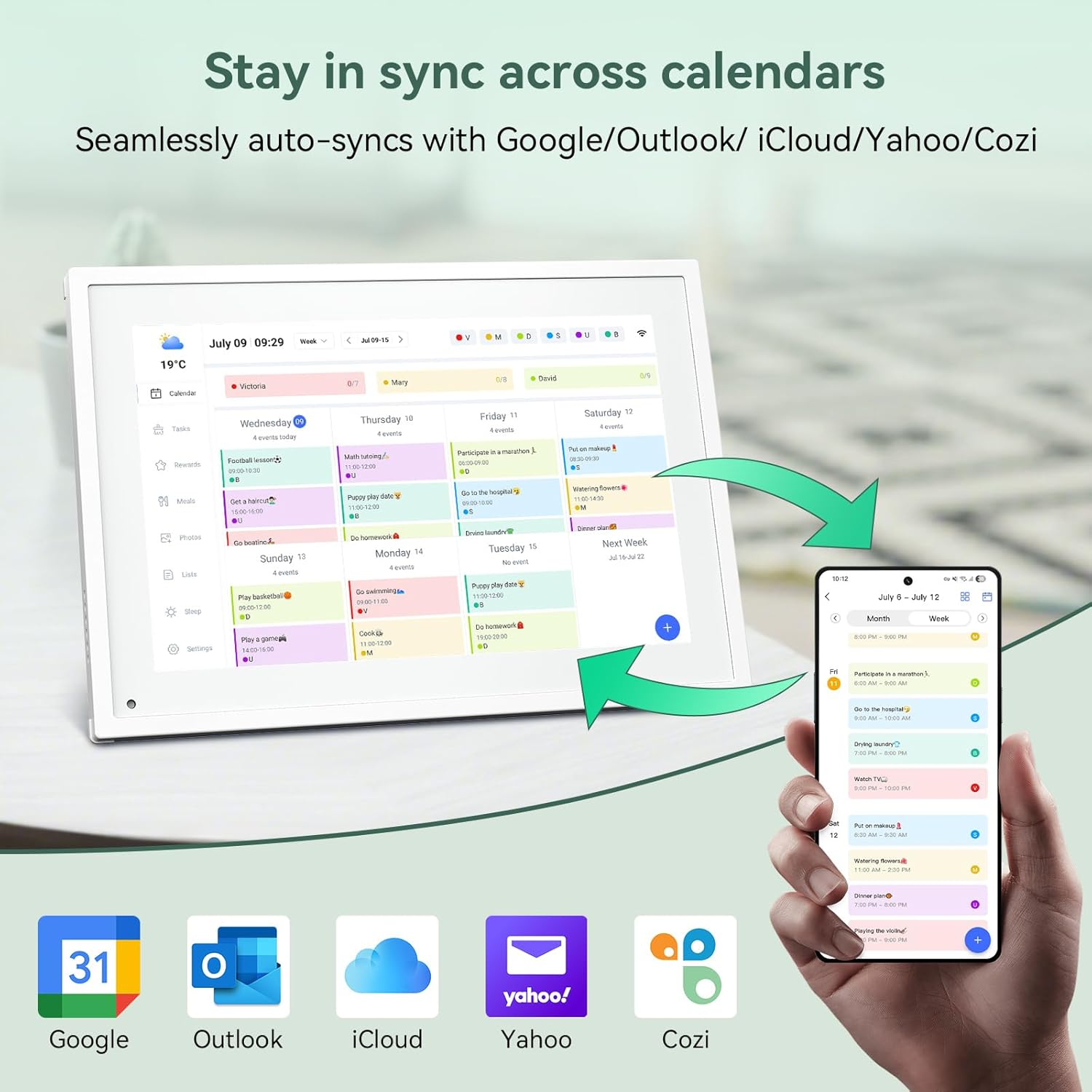
Imagem 6.1: Seamless synchronization of the digital calendar with various external calendar services.
- Syncing External Calendars: Within the eCalendar app settings, you can link your Google, Apple, Outlook, Yahoo, or Cozi calendars. Events from these linked accounts will automatically appear on your TABWEE Digital Calendar.
- Adding/Editing Events: Tap on a date or time slot on the calendar display or use the eCalendar app to add new events. You can specify event details, set reminders, and assign participants.
- Personalizado Views: Switch between day, week, or month views directly on the device or through the app.
6.3 Task Management (Chore Chart)
Organize tasks and chores for family members with a built-in reward system.
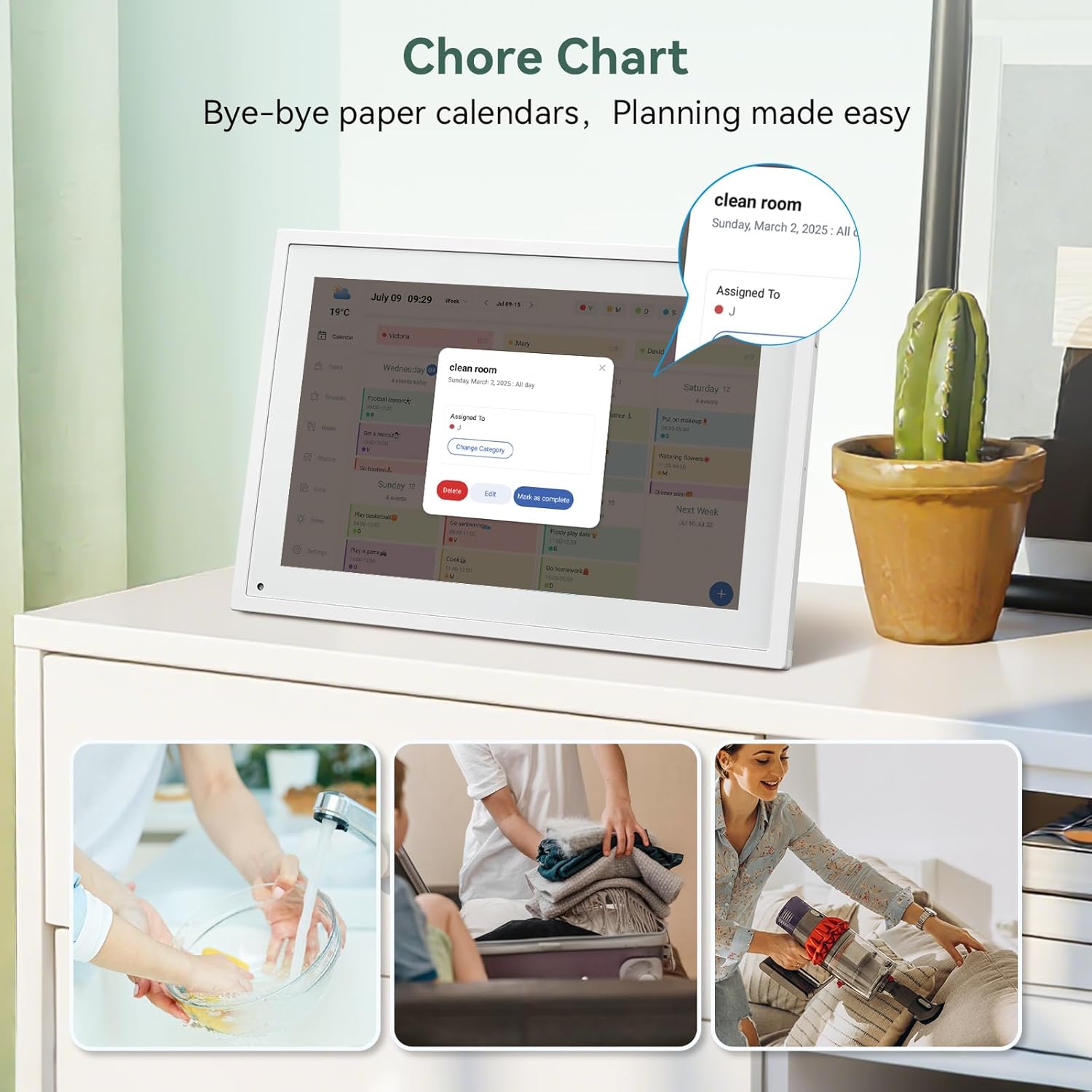
Imagem 6.2: Managing tasks and chores on the digital calendar interface.
- Creating Tasks: Use the 'Tasks' section on the device or app to create new tasks. Assign them to specific individuals, set due dates, and configure recurring tasks.
- Acompanhamento do progresso: Users can mark tasks as complete. The system tracks completion and can be configured to award points.
- Sistema de recompensas: Set up a star-point reward system within the app. Points earned from completed tasks can be redeemed for custom rewards, encouraging participation.

Imagem 6.3: The task manager and rewards interface, designed for engaging users.
6.4 Planejamento de Refeições
Plan your meals directly on the device or through the app.

Imagem 6.4: Visual meal planning interface on the digital calendar.
- Create Meal Plans: Access the 'Meals' section to plan breakfasts, lunches, dinners, and snacks for the week.
- Receitas personalizadas: Upload and store your favorite recipes.
- Grocery Lists: Generate grocery lists based on your meal plans.
6.5 Digital Photo Frame Functionality
The device can also function as a digital photo frame.

Imagem 6.5: The digital calendar switching between calendar and photo frame modes, in both landscape and portrait orientations.
- Modos de comutação: Navigate to the 'Photos' section on the device or app to activate the digital photo frame mode.
- Enviando fotos: Upload your favorite memories directly from your smartphone via the eCalendar app.
- Orientação: The device supports both landscape and portrait orientations, automatically adjusting the display.
6.6 Outros Recursos
The TABWEE Digital Calendar includes additional smart features to enhance usability.
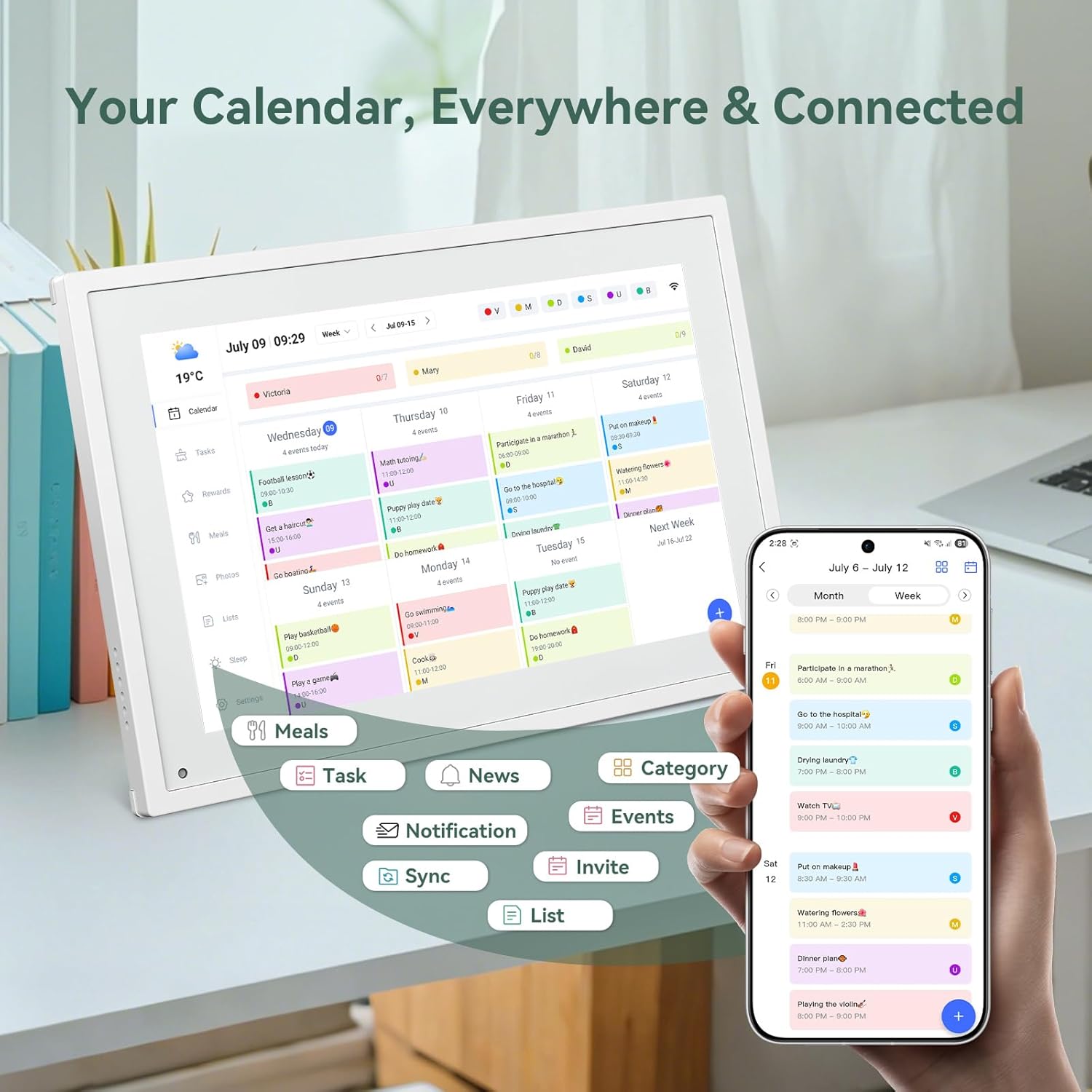
Imagem 6.6: Sobreview of smart features and app connectivity.
- Live Weather Forecasts: Exibe as condições meteorológicas atuais e as previsões.
- Brilho automático: The built-in light sensor automatically adjusts screen brightness for optimal viewindo.
- Modo dormir: Configure scheduled times for the device to enter a low-power sleep mode.
- Custom Lists: Create and manage various lists (e.g., shopping lists, packing lists).
- Codificação de cores: Assign different colors to events or tasks for easy visual identification.
7. Manutenção
7.1 Limpando o Dispositivo
- Limpe suavemente a tela com um pano macio e sem fiapos. Para manchas persistentes, esfregue levemente a tela.ampMolhe o pano com água ou com uma solução de limpeza de telas.
- Evite usar produtos químicos agressivos, materiais abrasivos ou sprays aerossóis diretamente no dispositivo.
- Certifique-se de que o dispositivo esteja desligado e desconectado antes de limpar.
7.2 Atualizações de Software
The device may receive periodic software updates to improve performance and add new features. Ensure your device is connected to Wi-Fi to receive these updates. You will typically be notified on-screen when an update is available.
8. Solução De Problemas
| Problema | Possível causa | Solução |
|---|---|---|
| O dispositivo não liga. | Adaptador de energia não está conectado ou está com defeito. | Certifique-se de que o adaptador de energia esteja conectado firmemente ao dispositivo e a uma tomada elétrica em funcionamento. |
| Não é possível conectar ao Wi-Fi. | Senha incorreta, endereço IP fora do intervalo permitido ou problema de rede. | Verify Wi-Fi password. Move the device closer to the router. Restart your router. |
| Calendar events are not syncing. | App not linked, external calendar not connected, or internet issue. | Check app-device linking. Ensure external calendars are correctly linked in the eCalendar app. Verify internet connection. |
| A tela não responde. | Falha temporária de software. | Restart the device by holding the power button until it turns off, then power it back on. |
9. Especificações
| Recurso | Detalhe |
|---|---|
| Número do modelo | P10 |
| Tamanho da tela | 10.1 polegadas |
| Tipo de exibição | Tela sensível ao toque |
| Conectividade | Wi-fi |
| Dimensões do produto | 10.51 x 0.91 x 7.32 polegadas (26.7 x 2.3 x 18.6 cm) |
| Peso do item | 2.58 libras (1.17 kg) |
| Tipo de montagem | Desk Mount (not wall-mountable) |
| Fonte de energia | Plug-in (no internal battery) |
| Cor | Branco |
10. Garantia e Suporte
The TABWEE Digital Calendar comes with a standard manufacturer's warranty. For specific warranty terms and conditions, please refer to the warranty card included in your product packaging or visit the official TABWEE website.
For technical support, troubleshooting assistance, or any inquiries regarding your product, please contact TABWEE customer service through their official website ou as informações de contato fornecidas na documentação do produto.


