Introdução
Obrigado pela compra.asing the Matbip Multi-Platform Wireless Gaming Controller. This controller is designed to enhance your gaming experience across various platforms, including Nintendo Switch, Android, iOS, and PC. It features advanced functions such as TURBO burst, macro programming, customizable RGB lighting, and HD vibration, providing precise control and immersive feedback. Please read this manual carefully before use to ensure proper operation and to fully utilize all features.
Produto acimaview
Familiarize yourself with the various components and buttons of your Matbip controller.
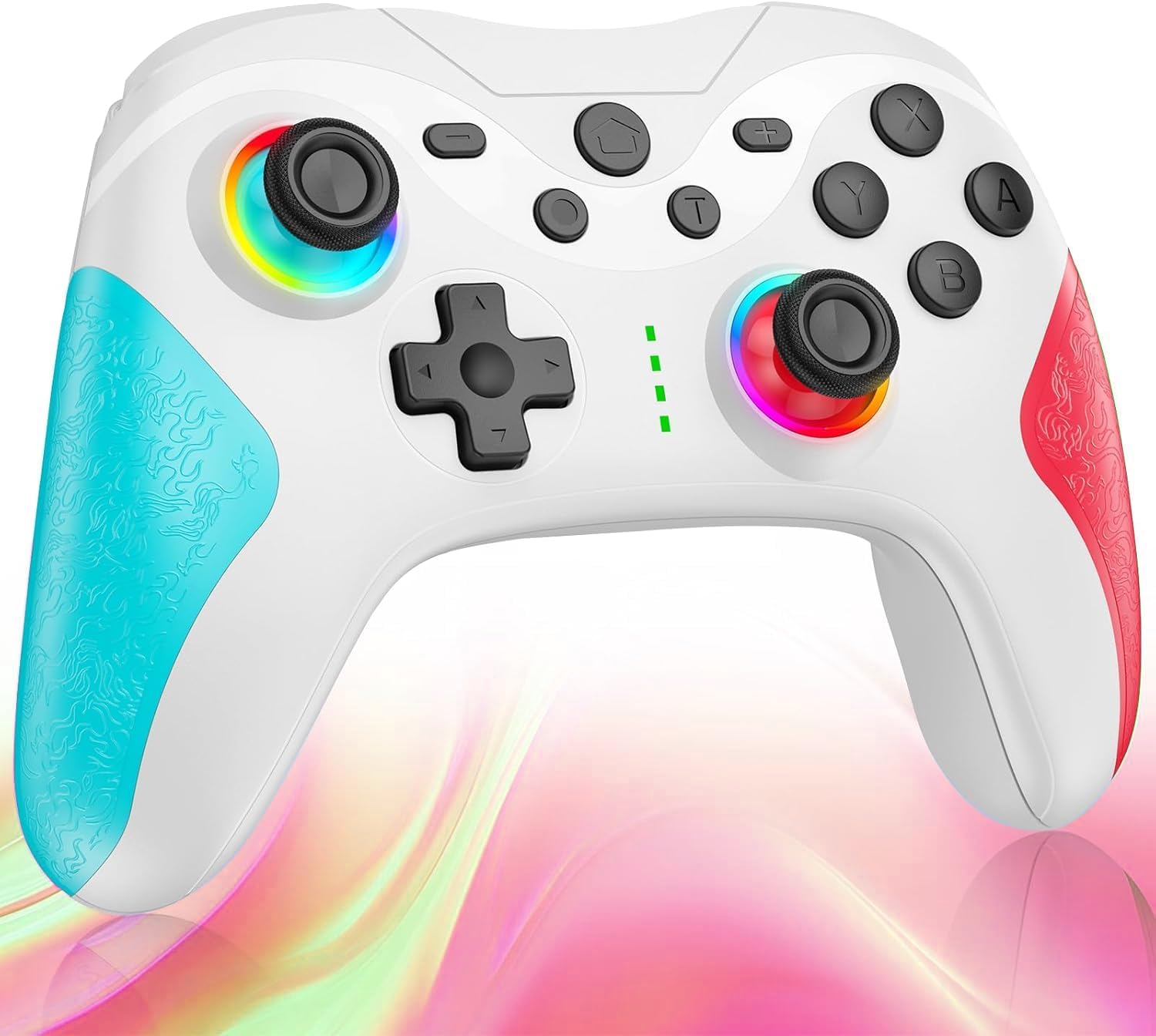
Imagem: Frente view of the Matbip Multi-Platform Wireless Gaming Controller. It features a white body with blue textured grips on the left and red textured grips on the right. The joysticks are illuminated with a rainbow RGB light. Standard buttons (A, B, X, Y), a D-pad, and central function buttons (Home, Plus, Minus, T) are visible.
Componentes principais:
- Joysticks esquerdo/direito: For directional control, with customizable RGB lighting.
- D-pad: Para entrada direcional precisa.
- Botões de ação (A/B/X/Y): Botões de entrada padrão para jogos.
- Shoulder Buttons (L/R/ZL/ZR): Top-mounted trigger and bumper buttons.
- Back Buttons: Additional programmable buttons on the rear for strategic gameplay.
- Botão Home: Retorna à tela inicial do sistema.
- Botões de mais (+) / menos (-): System-specific function buttons.
- T Button (TURBO): Activates and manages the TURBO burst function.
- Porta de carregamento: Porta USB-C para carregamento.
- Luzes indicadoras: Exibe o status da conexão e o nível da bateria.
Configurar
1. Carregando o controlador
Before first use, fully charge the controller. Connect the provided USB-C cable to the controller's charging port and the other end to a USB power source (e.g., console, PC, or USB wall adapter). The indicator lights will show charging status and turn off when fully charged.
2. Emparelhamento com dispositivos
The controller supports Bluetooth wireless connection across multiple platforms.
Para Nintendo Switch:
- On the Switch HOME Menu, select Controladores > Alterar Pega/Ordem.
- Pressione e segure o Botão Home on the Matbip controller for 3-5 seconds until the indicator lights flash rapidly.
- Após o emparelhamento, a(s) luz(es) indicadora(s) no controle remoto permanecerão acesas de forma contínua.
For Android/iOS Devices:
- Ative o Bluetooth no seu dispositivo Android ou iOS.
- Pressione e segure o Botão Home on the Matbip controller for 3-5 seconds until the indicator lights flash rapidly.
- On your device's Bluetooth settings, select the controller (e.g., "Matbip Controller") from the list of available devices to pair.
Para PC (Windows):
- Ensure your PC has Bluetooth enabled. Go to Configurações > Dispositivos > Bluetooth e outros dispositivos.
- Clique Adicionar Bluetooth ou outro dispositivo > Bluetooth.
- Pressione e segure o Botão Home on the Matbip controller for 3-5 seconds until the indicator lights flash rapidly.
- Select the controller from the list of devices to pair.
Instruções de operação
TURBO Burst Function:
The TURBO function allows for rapid, automatic button presses, ideal for combat games.
- Para ativar o TURBO: Pressione e segure o botão T, then press the desired action button (e.g., A, B, X, Y, L, R, ZL, ZR). The button will now continuously activate when held down.
- Para ajustar a velocidade do TURBO: Enquanto segura o botão T, mova o right joystick up or down to cycle through 3 different burst speeds.
- Para desativar o TURBO: Pressione e segure o botão TEm seguida, pressione o mesmo botão de ação novamente.
Função macro:
Program a sequence of button presses to a single back button for complex actions.
- Specific instructions for macro programming will be detailed in the full manual. Generally, this involves entering a programming mode, pressing the sequence, and assigning it to a back button.
Iluminação RGB personalizável:
The joysticks feature 9-color RGB lighting to enhance your gaming atmosphere.
- To change RGB color/mode: Press a specific button combination (e.g., T + Left Joystick click) to cycle through different colors and lighting effects.
HD Vibration Adjustment:
Adjust the intensity of the HD vibration feedback to your preference (4 levels).
- Para ajustar a vibração: Press a specific button combination (e.g., T + D-Pad Up/Down) to cycle through the 4 vibration levels.
Sensor giroscópio:
The high-precision gyro sensor enables intuitive motion control in supported games.
- The gyro sensor is automatically active when connected to a compatible device (e.g., Nintendo Switch) and used in games that support motion controls.
Sleep Wake-up Function:
The controller supports waking up your Nintendo Switch console from sleep mode.
- When the Switch is in sleep mode, simply press the Botão Home on the controller to wake it up and reconnect.
Manutenção
Proper maintenance ensures the longevity and optimal performance of your controller.
- Limpeza: Use um pano macio e seco para limpar o controle. Para sujeira mais difícil de remover, umedeça levemente o controle.ampUmedeça o pano com água. Não utilize produtos químicos agressivos ou abrasivos.
- Armazenar: Guarde o controlador em local fresco e seco, longe da luz solar direta, temperaturas extremas e umidade.
- Cuidados com a bateria: Avoid fully discharging the battery frequently. If storing for a long period, charge the controller to about 50% every few months.
- Evite quedas: Proteja o controlador contra quedas e impactos, que podem danificar os componentes internos.
Solução de problemas
Se você encontrar problemas com seu controlador, consulte as seguintes soluções comuns:
| Problema | Solução possível |
|---|---|
| O controle não liga. | Certifique-se de que o controle esteja carregado. Conecte-o a uma fonte de energia usando o cabo USB-C. |
| Controller does not pair. | Ensure Bluetooth is enabled on your device. Make sure the controller is in pairing mode (flashing lights). Try restarting both the controller and the device. |
| Atraso na entrada ou desconexão. | Ensure there are no strong wireless interferences nearby. Move closer to the device. Re-pair the controller. |
| Os botões ou joysticks não respondem. | Try resetting the controller (refer to the full manual for reset instructions, usually a small pinhole button). Ensure no debris is obstructing the buttons. |
| A vibração não está funcionando. | Check if vibration is enabled in the game or system settings. Adjust the vibration intensity on the controller. |
Especificações
| Recurso | Detalhe |
|---|---|
| Dimensões do produto | 10 x 15 x 6.5 cm |
| Peso | 300 g |
| Conectividade | Bluetooth sem fio |
| Compatibilidade | Nintendo Switch, Android, iOS, PC (Windows) |
| Características especiais | TURBO Burst, Macro Function, 9-Color RGB Lighting, 4-Level HD Vibration, Gyro Sensor, Back Buttons, Sleep Wake-up |
| ASIN | B0FHWRK7CQ |
| Data de lançamento | 16 de julho de 2025 |
Garantia e Suporte
Matbip is committed to providing high-quality products and customer satisfaction. This product comes with a standard manufacturer's warranty. For detailed warranty information, please refer to the documentation included with your purchase or contact Matbip customer support.
If you require further assistance, have questions, or encounter issues not covered in this manual, please contact our customer support team. A Japanese instruction manual is included with the product to ensure ease of use for first-time users.
Informações de contato: Please refer to the packaging or the official Matbip webAcesse o site para obter os detalhes de contato mais atualizados do suporte ao cliente.


