1. Introdução
This manual provides detailed instructions for the Newmight 4-in-1 USB C Dual HDMI Adapter. It covers product features, setup, operation, compatibility, and troubleshooting to ensure optimal performance and user experience. Please read this manual thoroughly before using the adapter.
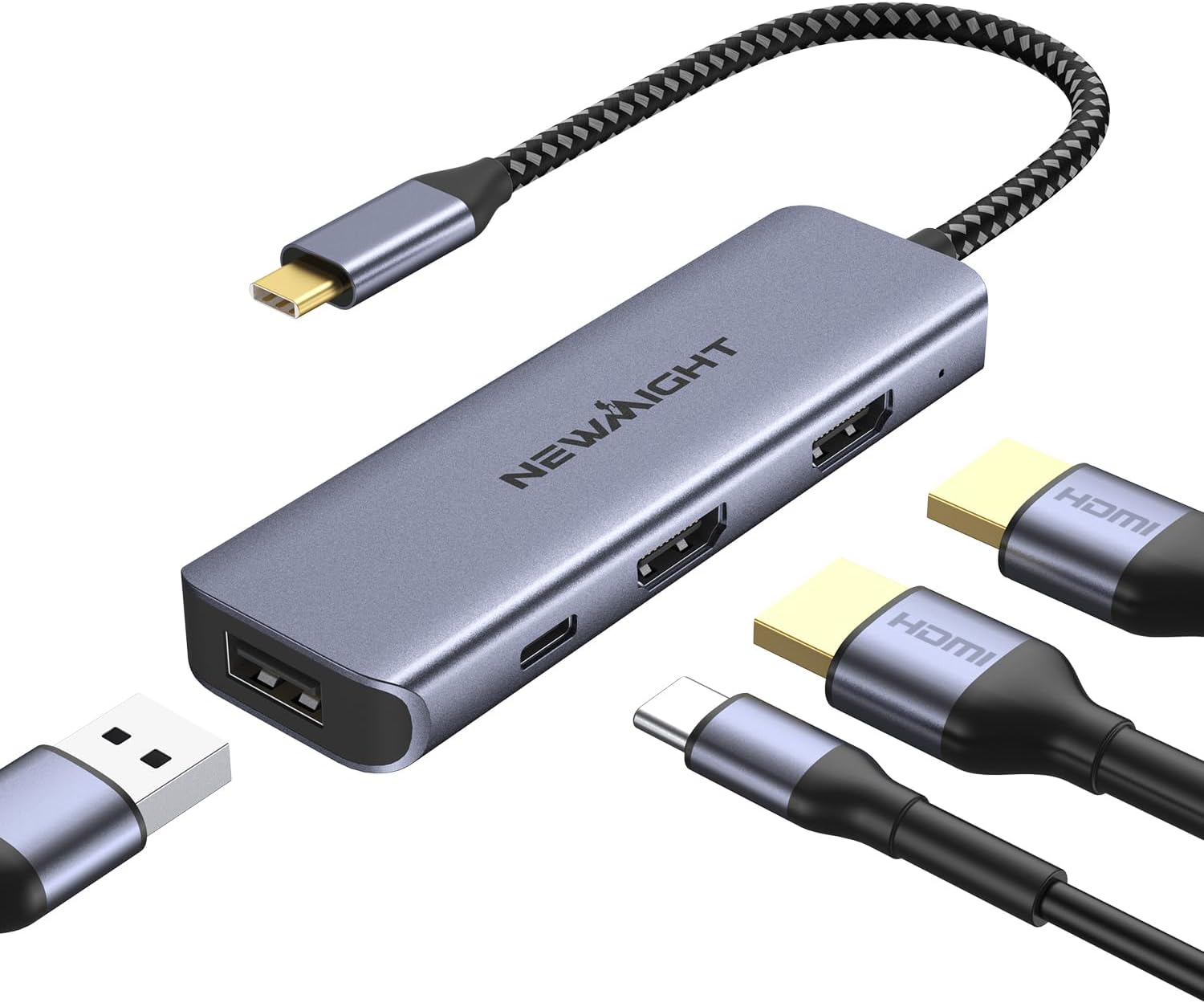
Image 1: The Newmight 4-in-1 USB C Dual HDMI Adapter, a compact grey device with a braided USB-C cable, two HDMI ports, a USB-A port, and a PD charging port.
2. Recursos do Produto
The Newmight 4-in-1 USB C Dual HDMI Adapter is designed to expand your laptop's connectivity with multiple ports, supporting high-resolution displays and fast charging.
- Saída HDMI dupla: Supports single 4K@60Hz or dual 4K@30Hz display configurations.
- Fornecimento de energia de 100 W (PD): Allows fast charging of your laptop while using the adapter.
- Porta USB-A: For connecting external devices such as a mouse, keyboard, or flash drive.
- Conecte e use: No driver installation required.
- Design durável: Made of anodized aluminum alloy for resistance to fingerprints, scratches, and wear, with efficient heat dissipation.

Image 2: A diagram illustrating the ports of the Newmight 4-in-1 USB C Adapter: two HDMI ports (up to 4K resolution), a PD Charging port (up to 100W), and a USB port (Fast Transfer).
3. Instruções de configuração
- Verify Laptop Compatibility: Ensure your laptop's USB-C port supports video output (DP Alt Mode) and Power Delivery if you intend to charge through the adapter. Some USB-C ports only support data transfer.
- Conecte o adaptador: Plug the USB-C connector of the Newmight adapter into an available USB-C port on your laptop.
- Conectar monitores: Connect your HDMI monitors to the HDMI ports on the adapter using HDMI cables.
- Conectar à energia (opcional): If you wish to charge your laptop, connect your laptop's USB-C power adapter to the PD 100W charging port on the Newmight adapter.
- Conecte periféricos USB (opcional): Plug any USB-A devices (e.g., mouse, keyboard, flash drive) into the USB-A port on the adapter.

Image 3: The Newmight adapter connected to a laptop via USB-C, with a power adapter plugged into the PD port, illustrating 100W Power Delivery.
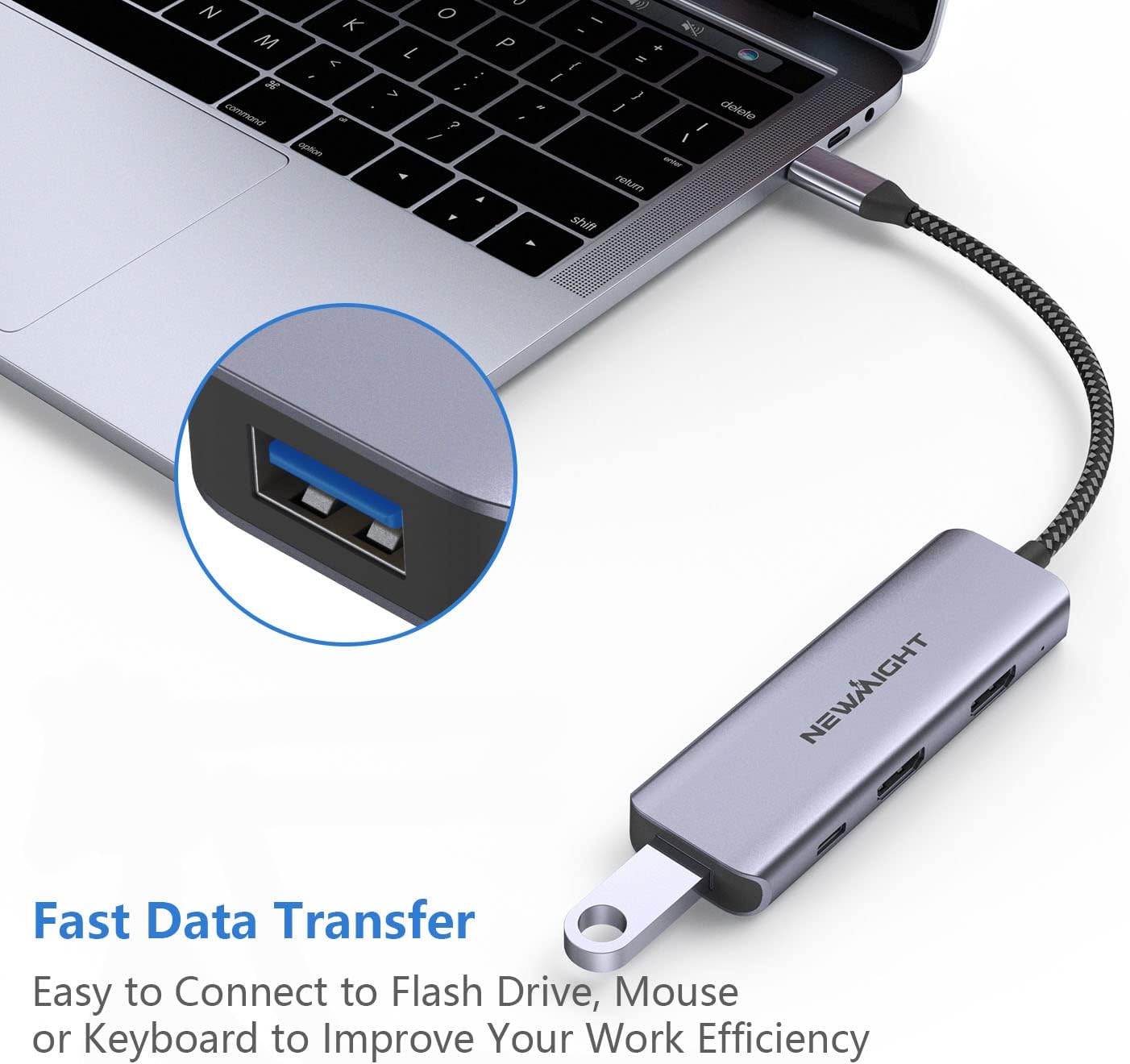
Image 4: A USB flash drive connected to the USB-A port of the Newmight adapter, demonstrating its data transfer capability.
4. Instruções de operação
4.1 Display Modes for Windows
For Windows operating systems, the adapter supports multiple display modes:
- Modo Espelho: Duplicates your laptop's display across all connected monitors (A-A-A).
- Modo de extensão: Extends your desktop across multiple monitors, allowing for different content on each screen (A-B-C).

Image 5: Illustration of Mirror Mode and Extend Mode for Windows, showing how the laptop display (A) can be duplicated or extended across two external monitors (B and C).
4.2 Display Modes for macOS
Due to macOS limitations, all MacBook models have specific display capabilities:
- Modo Espelho: Duplicates your laptop's display across all connected monitors (A-A-A).
- Extend Mode (SST): Allows for an extended desktop, but both external monitors will display the same content (A-B-B). macOS does not support Multi-Stream Transport (MST) mode (A-B-C) for different content on each external display.
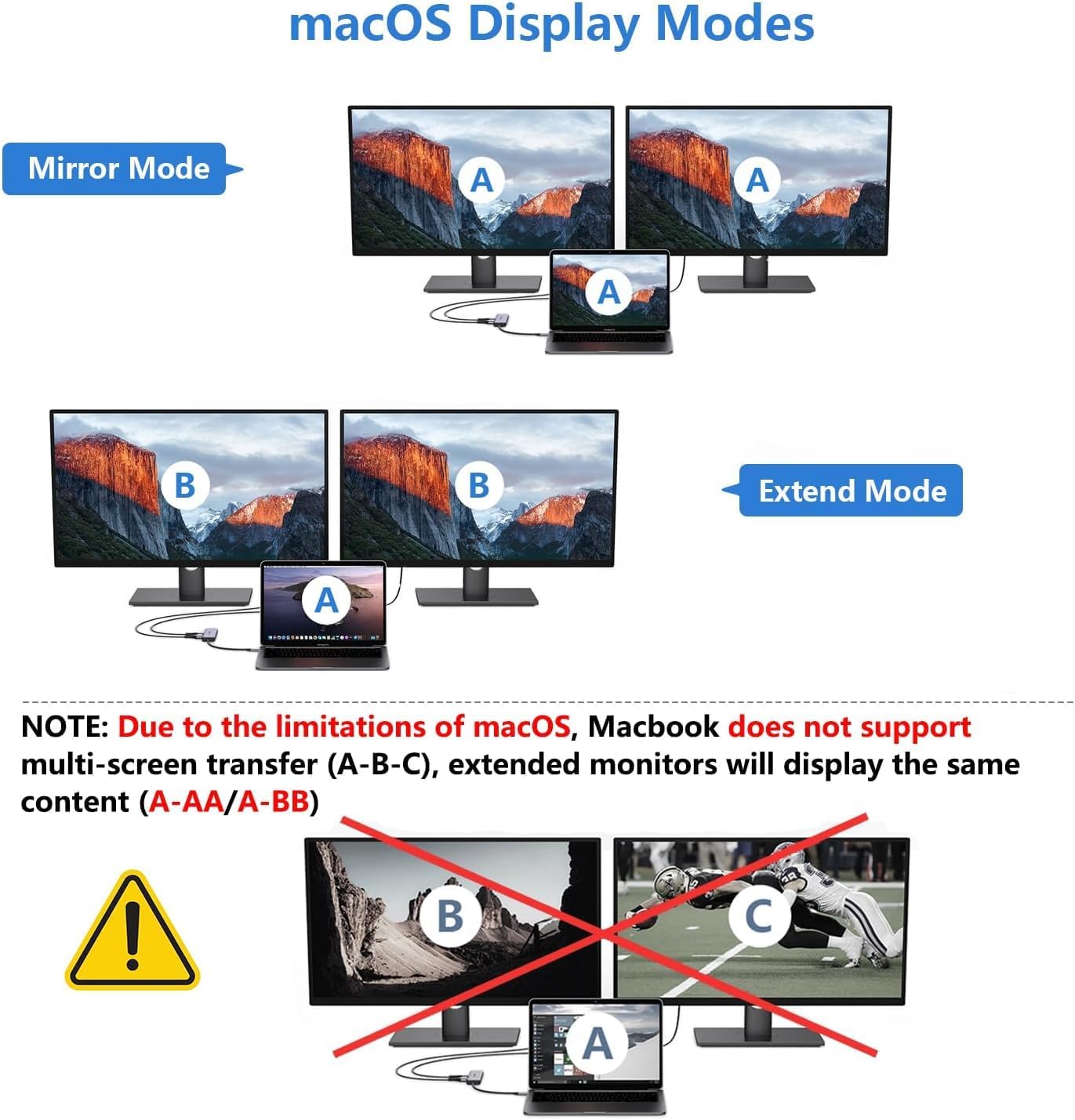
Image 6: Illustration of Mirror Mode and Extend Mode for macOS, highlighting that extended monitors will display the same content (A-AA/A-BB) due to macOS limitations, and MST mode (A-B-C) is not supported.
4.3 Qualidade de vídeo
The adapter supports high-definition video output:
- Single HDMI output: Up to 4K@60Hz.
- Dual HDMI output: Up to 4K@30Hz for each monitor.

Image 7: A laptop connected to two external monitors via the Newmight adapter, displaying high-definition 4K content, emphasizing clear picture quality.
Video 1: An official Newmight video demonstrating the features and connectivity of the USB C to Dual HDMI 4-in-1 adapter, including dual monitor setup, charging, and USB connectivity.
5. Compatibilidade
The Newmight 4-in-1 USB C Dual HDMI Adapter is compatible with a wide range of devices and operating systems:
5.1 Host Devices
- Most Type C laptops with Thunderbolt 3/4 or DP Alt Mode support.
- Examples include: MacBook Pro/Air (2016+), Dell XPS, HP Spectre, ThinkPad, Surface Book 2, Google Chromebook Pixel, iPad Pro/Air, iPhone 15/15 Pro Series.
Sistemas Operacionais 5.2
- Mac OS
- Windows
- Linux
- iOS 17 e posterior

Image 8: A visual guide to checking laptop USB-C port compatibility, showing icons for Thunderbolt 3/4 (Full Function), Data/Video Transfer, and ports that only support Data Transfer or Charging (not compatible for video output).

Imagem 9: Um excessoview of wide compatibility, listing various host devices like MacBook, Dell XPS, iMac, iPad Pro/Air, Surface, iPhone 15/15 Pro Series, and operating systems such as macOS, Windows, Linux, and iOS 17.
6. Especificações
| Recurso | Detalhe |
|---|---|
| Número do modelo | dual 4-in-1 |
| Dimensões do produto | 3.94 x 1.18 x 0.47 polegadas |
| Peso do item | 1.41 onças |
| Cor | Cinza |
| interface de hardware | HDMI, USB2.0 |
| Fornecimento de energia | Até 100W |
| Saída HDMI | Single 4K@60Hz, Dual 4K@30Hz |
7. Solução De Problemas
- Sem saída de vídeo:
- Ensure your laptop's USB-C port supports video output (DP Alt Mode). Some USB-C ports are for data transfer or charging only.
- Check all cable connections (USB-C to laptop, HDMI to monitors).
- Reinicie o seu computador portátil e volte a ligar o adaptador.
- Dual Monitors Display Same Content on macOS:
- This is a limitation of macOS. MacBook models can only mirror the display on two screens (A-A-A / A-B-B) and do not support MST (Multi-Stream Transport) mode (A-B-C) for different extended displays. This applies to all docking stations on the market.
- Carregamento não funciona:
- Verifique se a porta USB-C do seu laptop é compatível com Power Delivery.
- Verify that your power adapter is connected to the PD port on the Newmight adapter.
- Conexão intermitente:
- Certifique-se de que todas as conexões estejam seguras.
- Avoid using excessively long or low-quality extension cables, which can degrade signal integrity.
8. Manutenção
- Mantenha o adaptador limpo, passando um pano macio e seco.
- Evite expor o adaptador a temperaturas extremas, umidade ou luz solar direta.
- Do not attempt to disassemble or repair the adapter yourself. Contact support if issues arise.
- Guarde o adaptador em local fresco e seco quando não estiver em uso.
9. Garantia e Suporte
The Newmight 4-in-1 USB C Dual HDMI Adapter comes with a Garantia de 12 meses from the date of purchase. Additionally, lifetime technical support is provided. For any technical assistance or warranty claims, please contact Newmight customer service through the retailer where the product was purchased or visit the official Newmight website.