1. Introdução
This manual provides essential information for setting up, operating, maintaining, and troubleshooting your HP OMEN 16 MAX Gaming Laptop. Please read this guide thoroughly to ensure optimal performance and longevity of your device.
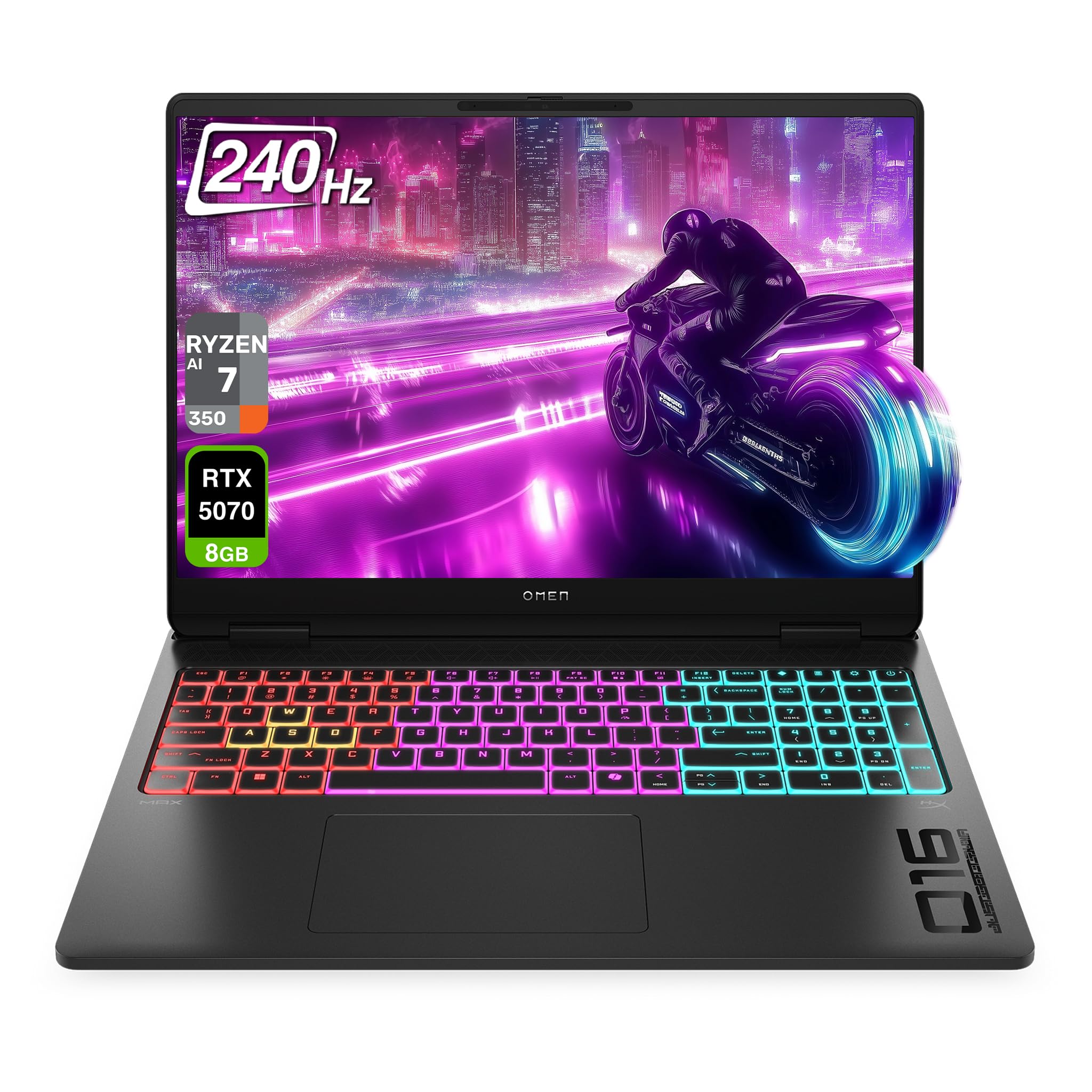
Figure 1.1: HP OMEN 16 MAX Gaming Laptop, showcasing its sleek design and RGB backlit keyboard.
2. Configuração inicial
2.1 Unpacking and First Boot
- Retire cuidadosamente o laptop e todos os acessórios da embalagem.
- Connect the AC adapter to the laptop's AC smart pin port and then to a power outlet.
- Abra a tampa do laptop e pressione o botão liga/desliga para ligar o dispositivo.
- Follow the on-screen instructions to complete the Windows 11 Home setup. This includes selecting your region, connecting to a network, and creating a user account.
2.2 Conectando Periféricos
The HP OMEN 16 MAX offers various ports for connecting external devices:

Figura 2.1: Lateral view of the laptop highlighting the USB Type-A, HDMI, RJ-45, AC Smart pin, USB Type-C, and headphone/microphone combo ports.
- USB Type-A (10Gbps signaling rate): Connect external storage, mice, or other USB accessories.
- HDMI 2.1: Connect to an external display or TV for high-resolution video output.
- RJ-45: Para conexões de rede com fio.
- USB Type-C (40Gbps signaling rate, USB Power Delivery 3.1, DisplayPort 2.1, HP Sleep and Charge): Versatile port for data transfer, charging, and video output.
- Headphone/microphone combo: Connect a headset for audio input and output.
3. Principais características
3.1 Exibição
The laptop features a 16-inch WQXGA (2560 x 1600) display with a 60–240 Hz refresh rate and 3 ms response time. It utilizes an IPS panel with micro-edge design, anti-glare coating, and Low Blue Light technology. The display offers 500 nits brightness and 100% sRGB color gamut for vibrant and accurate visuals.

Figure 3.1: The 16-inch WQXGA display provides crisp images and a high refresh rate for smooth visuals.
3.2 Hardware de Desempenho
- Processador: AMD Ryzen AI 7 H 350 (up to 5.0 GHz max boost clock, 16 MB L3 cache, 8 cores, 16 threads).
- Gráficos: NVIDIA GeForce RTX 5070 Laptop GPU (8 GB GDDR7 dedicated).
- BATER: 32 GB DDR5 RAM.
- Armazenar: 2 TB PCIe SSD.
3.3 Sistema de Resfriamento
The OMEN Tempest Cooling PRO architecture is designed to maintain optimal temperatures for all components, even under heavy load, preventing thermal throttling. This system includes:
- Fan Cleaner: Self-cleaning fan technology to reduce performance degradation and minimize maintenance.
- OMEN Cryo Compound: An upgraded hybrid material applied to the CPU and GPU for enhanced heat dissipation and extended device longevity.
- OMEN IR Sensor: Dynamically adjusts and optimizes thermal and acoustic performance in real-time.
3.4 Keyboard and Connectivity
- Teclado: 4-Zone RGB Backlit Keyboard for customizable lighting.
- Sem fio: Wi-Fi 7 BE200 (2x2) and Bluetooth 5.4 wireless card for high-speed and reliable connections.

Figure 3.2: The 4-Zone RGB backlit keyboard offers customizable lighting effects.
4. Instruções de operação
4.1 OMEN Gaming Hub
The OMEN Gaming Hub is your central control panel for optimizing your laptop's performance and customizing settings. It includes features such as:
- Unleashed Mode: Allows manual overclocking of your device beyond factory limits, leveraging OMEN Tempest Cooling PRO for stable performance. Access this mode under Performance Control.
- Controle de iluminação: Customize the 4-Zone RGB backlit keyboard and other lighting elements.
- System Vitals: Monitor CPU, GPU, and RAM usage, along with temperature readings.
- Impulsionador de rede: Prioritize network traffic for gaming applications.
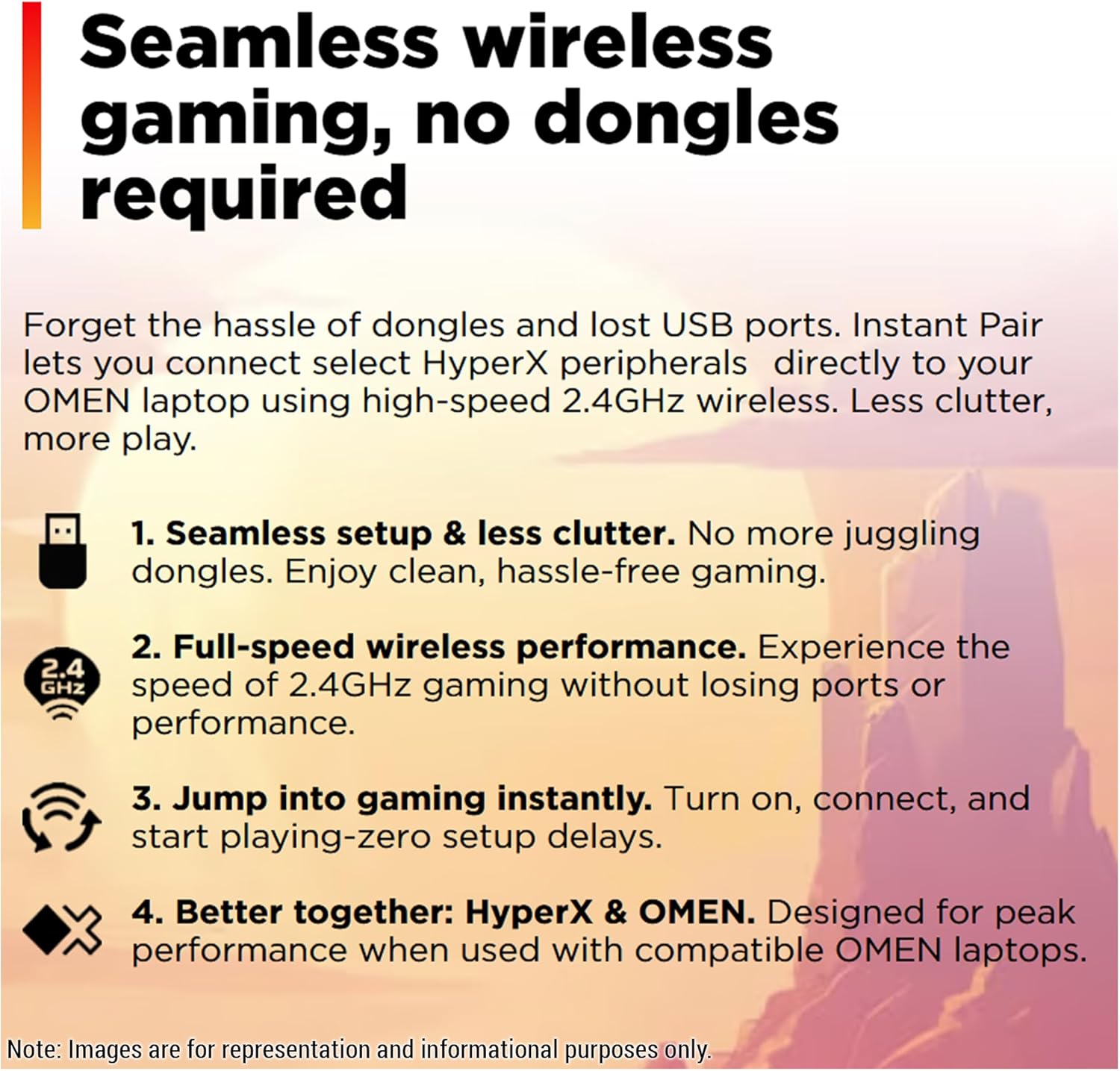
Figure 4.1: OMEN Gaming Hub interface, demonstrating the Unleashed Mode for performance tuning.
4.2 Conectividade sem fio
The laptop supports Wi-Fi 7 and Bluetooth 5.4. For seamless wireless gaming with compatible HyperX peripherals, Instant Pair technology allows direct connection without dongles, reducing clutter and ensuring full-speed performance.

Figure 4.2: Instant Pair technology simplifies connecting HyperX peripherals for a clutter-free gaming experience.
5. Manutenção
5.1 Limpando seu laptop
- Use um pano macio e sem fiapos para limpar a tela e as superfícies externas.
- Para manchas persistentes, aplique ligeiramenteampLimpe o pano com água ou um produto de limpeza seguro para telas.
- Evite pulverizar líquidos diretamente sobre o laptop.
- Regularly clean the keyboard with compressed air to remove dust and debris.
5.2 Atualizações de Software
Keep your operating system, drivers, and OMEN Gaming Hub software updated to ensure optimal performance, security, and access to the latest features. Windows Update will handle most system updates, while OMEN Gaming Hub can manage specific HP and gaming-related software.
5.3 Manutenção do Ventilador
The OMEN Tempest Cooling PRO system includes a Fan Cleaner feature. While designed to be self-cleaning, occasional checks for excessive dust buildup in the vents are recommended. If significant dust is observed, use compressed air to clear the vents. Do not attempt to disassemble the laptop for fan cleaning unless you are a qualified technician.
6. Solução De Problemas
6.1 Problemas e soluções comuns
- O computador portátil não liga: Certifique-se de que o adaptador CA esteja firmemente conectado tanto ao laptop quanto a uma tomada elétrica em funcionamento. Se necessário, tente outra tomada.
- A tela está em branco: Check if the laptop is powered on. If connected to an external display, ensure the correct input source is selected on the external display. Try pressing Fn + F4 (or the corresponding display toggle key) to switch display outputs.
- Performance issues (lag, low frame rates):
- Verify that the laptop is connected to power and running in a high-performance power plan.
- Check OMEN Gaming Hub for Unleashed Mode activation and monitor system vitals for overheating.
- Certifique-se de que os drivers da placa gráfica estejam atualizados.
- Feche aplicativos desnecessários em segundo plano.
- Problemas de conectividade Wi-Fi:
- Reinicie o roteador e o modem.
- Ensure Wi-Fi is enabled on the laptop (check Windows settings).
- Atualize os drivers do adaptador sem fio.
7. Especificações
| Recurso | Detalhe |
|---|---|
| Marca | HP |
| Nome do modelo | HP OMEN 16 MAX Gaming-4 |
| Tamanho da tela | 16 polegadas |
| Resolução da tela | 2560 x 1600 pixels (WQXGA) |
| Resolução máxima da tela | 2560x1600 pixels |
| Processador | AMD Ryzen AI 7 H 350 (up to 5.0 GHz max boost, 8 cores, 16 threads) |
| BATER | 32 GB DDR5 SO-DIMM |
| Disco rígido | 2 TB SSD (PCIe x 4 interface) |
| Coprocessador gráfico | Nvidia GeForce RTX 5070 Laptop GPU |
| Tamanho da memória RAM da placa gráfica | 8 GB GDDR7 |
| Tipo sem fio | Wi-Fi 7 BE200 (802.11ax), Bluetooth 5.4 |
| Sistema operacional | Windows 11 Início |
| Peso do item | 5.48 libras |
| Dimensões do produto | 14.04 x 10.59 x 0.9 polegadas |
| Cor | Sombra Negra |
| Recurso especial | Backlit Keyboard (4-Zone RGB) |
8. Garantia e Suporte
For detailed warranty information and technical support, please refer to the official HP website ou a documentação incluída com o seu produto. Você também pode visitar o Loja HP na Amazon para recursos adicionais.
O que está na caixa:
- HP OMEN 16 MAX Gaming Laptop
- Adaptador de energia CA
- Keyboard (integrated)
9. Recursos em vídeo
9.1 A Deep Dive on the HP OMEN MAX 16
Video 9.1: This video provides an in-depth look at the HP OMEN MAX 16, covering its design, performance benchmarks, port configurations, display capabilities, and internal hardware. It highlights the laptop's ability to handle demanding gaming and creative tasks without performance drops, showcasing its sleek appearance and powerful specifications.