Produto acimaview
The NGTeco Smart Time Card is designed for seamless and accurate employee attendance tracking when used with compatible NGTeco time clock models. Crafted from high-quality, environmentally friendly PVC, these cards offer exceptional durability and reliability in various work environments.

Image: NGTeco Smart Time Card shown with compatible time clock models MB1, MB2, TC1, and TC2, illustrating its wide range of applications.
Principais características
- Compatibilidade: Specifically designed for NGTeco time clock models MB1, MB2, TC1, TC2, TC3, and TC7.
- Construção durável: Made from premium, eco-friendly PVC material, offering a smooth surface, waterproof protection, and fracture resistance.
- Tamanho padrão: Credit Card Size (CR80 Standard) measuring 85mm x 54mm (3.35" x 2.12") with a thickness of 0.86mm (0.03"), compliant with ISO standards.
- Alta precisão: Ensures real-time monitoring with 99.9% accuracy and seamless 0.5-second tap clock-in.
Especificações
| Atributo | Detalhe |
|---|---|
| Marca | NGTeco |
| Número do modelo | NG-TC1MB2 |
| Material | Cloreto de polivinila (PVC) |
| Dimensões do produto | 85mm x x 54mm 0.86mm (3.35 "x 2.12" x 0.03 ") |
| Recurso especial | Waterproof, Fracture Resistant |
| Compatibilidade | NGTeco MB1, MB2, TC1, TC2, TC3, TC7 Time Clocks |

Image: A close-up of the NGTeco Smart Time Card detailing its credit card size (CR80 Standard) and 0.86mm thickness, compliant with ISO standards.
Configurar
To utilize your NGTeco Smart Time Cards, you must first set up your compatible NGTeco time clock and register the cards through the NGTeco Office App. The app facilitates device connection, employee management, and time card assignment.
Initial Device Setup & App Connection
- Ligar: Connect your NGTeco time clock to a power source.
- Baixar aplicativo: Download the 'NGTeco Office' app from the Google Play Store or Apple App Store.
- Criar uma conta: Crie uma nova conta ou faça login se você já tiver uma.
- Adicionar dispositivo: In the app, select 'Add Device'. You can either scan the QR code displayed on your time clock's screen or use Bluetooth to connect.
- Configuração de rede: Configure the network settings (Wi-Fi or Ethernet) for your time clock through the app.
- Dispositivo de vinculação: Bind the time clock to your organization's site within the app.
Employee and Time Card Registration
- Add Employee: In the NGTeco Office app, navigate to 'Employee Management' and add new employees by entering their details (Person ID, Name, Department).
- Register Time Card: For each employee, select their profile in the app. Choose 'Card' as the verification method.
- Scan Card: When prompted by the app, hold the NGTeco Smart Time Card under the time clock's scanner. Repeat this process as instructed by the device until registration is confirmed.
- Assign Time Sheet: Create or assign a time sheet to the employee, defining their work schedule and pay periods.
Video: An unboxing and initial setup guide for the NGTeco TC2 Cloud Time Clock, demonstrating how to connect the device and register users via the NGTeco Office app.
Video: A detailed unboxing video for an NGTeco Time Clock, showing the components included and initial power-up sequence.
Video: A step-by-step guide on how to get started with the NGTeco Cloud Time Clock TC4, covering initial setup and app integration.
Operating the Smart Time Card
Once registered, employees can use their NGTeco Smart Time Card to quickly and accurately clock in and out of their shifts. The card's RFID technology ensures a rapid response time.
Clock-In/Out Procedure
- Approach Time Clock: Ensure the time clock is powered on and ready for use.
- Tap Card: Hold the NGTeco Smart Time Card firmly against the designated scanning area on the time clock.
- Confirmação: The time clock will emit an audible signal and/or display a visual confirmation (e.g., "Thank You") indicating a successful clock-in or clock-out.
- Precisão: The system records the exact time of the tap with 99.9% accuracy, ensuring precise attendance records.
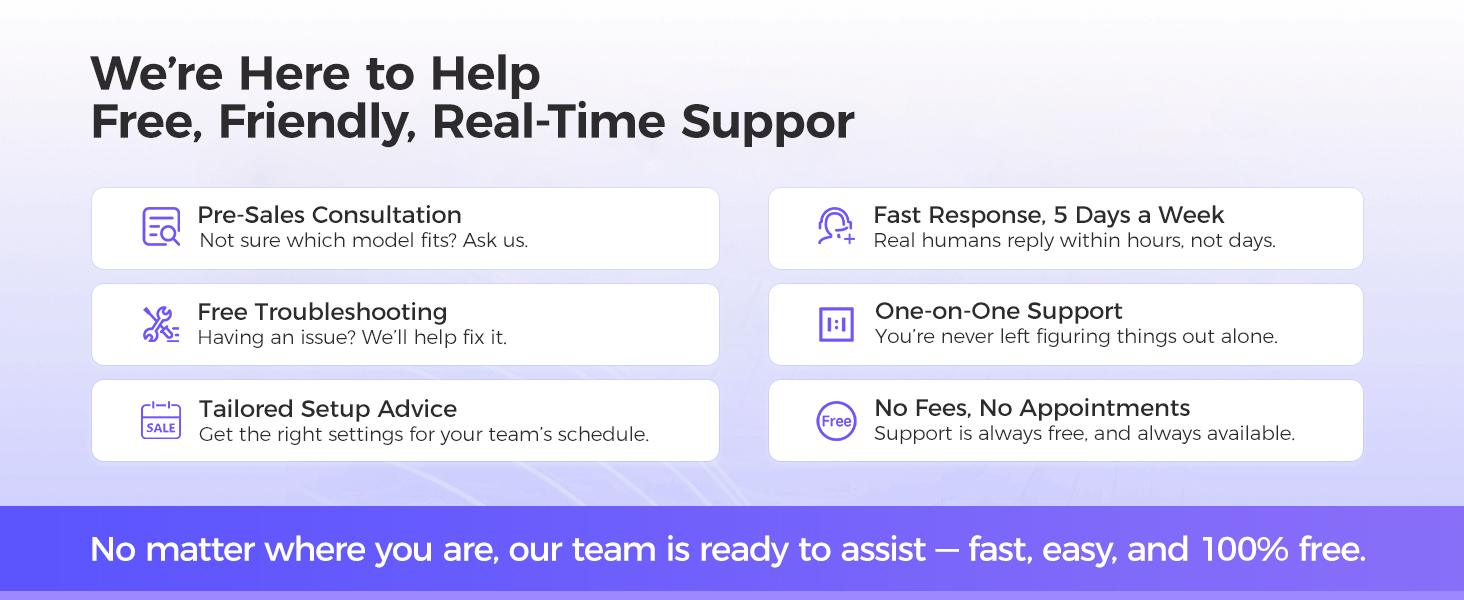
Image: A hand tapping the NGTeco Smart Time Card on a time clock, highlighting the accurate and efficient clock-in process.
Cuidados e Manutenção
The NGTeco Smart Time Card is designed for durability and longevity. Following these simple care instructions will help maintain its performance and appearance.
Dicas gerais de cuidados
- Impermeável: The card is waterproof, making it resistant to spills and moisture. However, prolonged submersion is not recommended.
- Durável: Its PVC construction provides exceptional fracture resistance. Avoid bending the card excessively to prevent damage.
- Limpeza: Wipe the card with a soft, damp cloth to remove dirt or smudges. Avoid using harsh chemicals or abrasive materials.
- Armazenar: Store cards in a clean, dry place away from extreme temperatures and direct sunlight when not in use.

Image: The NGTeco Smart Time Card partially submerged in water, illustrating its waterproof and durable design.
Solução de problemas
If you encounter any issues with your NGTeco Smart Time Card, refer to the following common troubleshooting steps.
Problemas e soluções comuns
- Card Not Reading:
- Ensure the card is placed correctly on the time clock's scanning area.
- Check if the time clock is powered on and functioning correctly.
- Verify that the card is not damaged (e.g., severe bends, cracks).
- Problemas de conectividade de aplicativos:
- Ensure your mobile device's Bluetooth is enabled when adding the device.
- Check the time clock's Wi-Fi or Ethernet connection status.
- Restart the NGTeco Office app and/or the time clock device.
- Employee Not Registered:
- Confirm that the employee's details and time card have been successfully registered in the NGTeco Office app.
- Ensure the correct time card is being used by the registered employee.
Garantia e Suporte
NGTeco is committed to providing excellent customer service and reliable products. Your Smart Time Card comes with comprehensive support to ensure your satisfaction.
Detalhes de suporte
- Garantia: Includes a 1-year warranty from the date of purchase.
- Suporte técnico: Lifetime technical support is available for all NGTeco products.
- Horário de contato: Our support team is available Monday to Friday, from 6 AM to 6 PM EST.

Image: A friendly customer support representative wearing a headset, symbolizing NGTeco's commitment to lifetime technical support.

Image: A graphic displaying NGTeco's customer support business hours: 9:00 AM - 6:00 PM EST, Monday - Friday.