1. Introdução
This manual provides essential information for the proper setup, operation, and maintenance of your NIMO 15.6 inch Laptop Computer. Please read this manual thoroughly before using your device to ensure optimal performance and longevity. Keep this manual for future reference.
2. Produto acabadoview
2.1. Componentes do laptop
The NIMO 15.6 inch Laptop features a Full HD display, a backlit keyboard, and an integrated fingerprint reader for secure access. It is powered by an AMD Ryzen 5 3500U processor and runs on Windows 11.

Figura 2.1: Frente view of the NIMO 15.6 inch Laptop, showcasing seu visor e layout do teclado.
2.2. Portas e Conectores
Your NIMO laptop is equipped with various ports for comprehensive connectivity, allowing you to connect peripherals and external devices.

Figure 2.2: Expanded Connectivity Options. This image illustrates the location and type of ports available on the laptop, including Type-C (Charge Only), USB 3.0, HDMI, Type-C (Full Function), Charge LED, Micro SD Reader, USB 2.0, USB 3.0, Headphone Combo, and Kensington Lock.
- Type-C (Charge Only): Para entrada de energia.
- USB 3.0: Para transferência de dados em alta velocidade.
- HDMI: Para conexão a monitores externos.
- Tipo C (Função Completa): Supports Power Delivery (PD), DisplayPort (DP), and data transfer.
- LED de carga: Indica o status de carregamento.
- Micro SD Reader: For reading Micro SD cards.
- USB 2.0: Para dispositivos USB padrão.
- USB 3.0: Para transferência de dados em alta velocidade.
- Headphone Combo: For audio output and microphone input.
- Cadeado Kensington: Para segurança física.
3. Configuração
3.1. Carregamento inicial
Before first use, connect the laptop to a power outlet using the provided 65W PD Type-C charger. The Charge LED indicator will illuminate. Allow the battery to charge fully.

Figure 3.1: Type-C 65W PD Charger. This image highlights the versatility of the 65W Power Delivery charger, capable of charging the laptop, tablets, and smartphones, reducing cable clutter.
3.2. Ligando
Open the laptop lid. Press the power button located on the keyboard deck. The laptop will boot up, and you will be guided through the Windows 11 initial setup process.
3.3. Configuração do Windows 11
Follow the on-screen instructions to configure your Windows 11 operating system. This includes selecting your region, language, connecting to a Wi-Fi network, and setting up your user account.
4. Instruções de operação
4.1. Teclado e entrada
The laptop features a backlit keyboard for comfortable typing in various lighting conditions, a responsive touchpad, and a numeric keypad for data entry.

Figure 4.1: Effortless Typing in Any Environment. This image demonstrates the backlit keyboard, touchpad, fingerprint reader, and numeric keypad, enhancing user experience and productivity.
- Teclado retroiluminado: Pressione o Fn key and the appropriate function key (usually F3 or F4, indicated by a keyboard icon) to adjust the backlight brightness or turn it on/off.
- Painel tátil: Use the touchpad for navigation. Supports multi-touch gestures for scrolling, zooming, and other functions.
- Teclado numérico: Provides dedicated number keys for efficient data entry.
4.2. Reconhecimento de impressão digital
The integrated fingerprint reader allows for secure and quick login. Set up your fingerprint in Windows Settings under 'Sign-in options'.
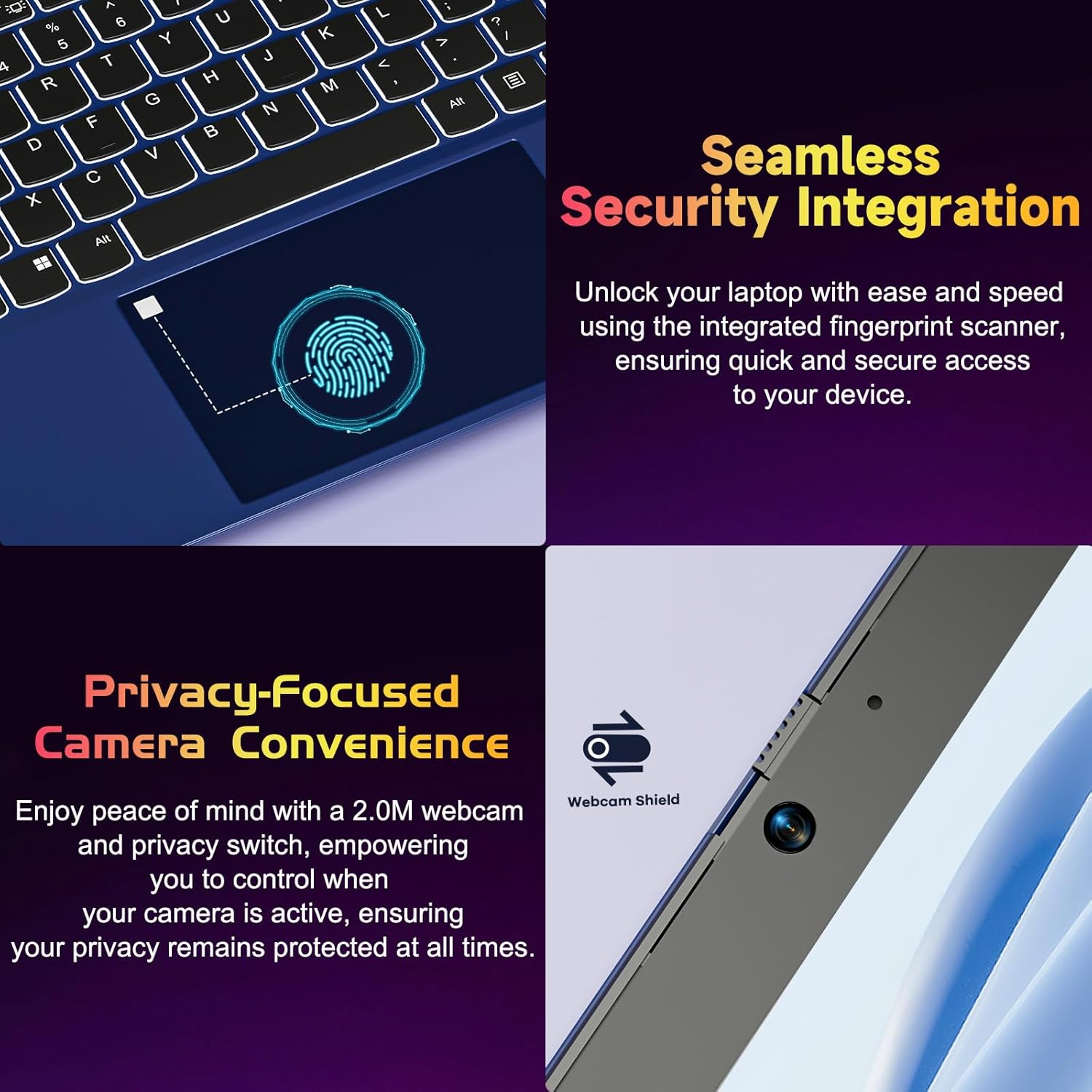
Figure 4.2: Seamless Security Integration and Privacy-Focused Camera. This image highlights the fingerprint scanner for quick and secure access, and the 2.0MP webcam with a physical privacy switch for enhanced user privacy.
4.3. Recursos de exibição
The 15.6 inch Full HD (1920 x 1080 Pixel) IPS display offers vivid visuals and a wide viewing angle. The 180° lay-flat hinge allows for flexible screen positioning, ideal for sharing content.

Figure 4.3: Vivid Full HD Display. This image emphasizes the laptop's 15.6-inch Full HD (1920x1080) IPS display, offering bright visuals and eye protection.

Figure 4.4: 180° Lay-Flat Hinge. This image illustrates the laptop's ability to lay flat, expanding usage scenarios and facilitating content sharing.
4.4. Webcam Privacy
The laptop includes a 2.0MP webcam with a physical privacy switch (Webcam Shield). Slide the switch to cover the camera lens when not in use to ensure your privacy.
5. Manutenção
- Limpeza: Use um pano macio e sem fiapos para limpar a tela e a parte externa. Para manchas persistentes, esfregue levemente.ampLimpe o pano com água ou um produto de limpeza para telas. Evite produtos químicos agressivos.
- Cuidados com a bateria: Para prolongar a vida útil da bateria, evite descarregá-la completamente com frequência. Guarde o laptop em local fresco e seco quando não for utilizá-lo por longos períodos.
- Atualizações de software: Atualize regularmente o sistema operacional Windows e os drivers para garantir desempenho e segurança ideais.
- Expansão de armazenamento: The laptop supports dual DDR4 SO-DIMM slots and M.2 NVMe SSD for memory and storage expansion. Consult a qualified technician for upgrades.
6. Solução De Problemas
6.1. Problemas de energia
- O laptop não liga: Certifique-se de que o laptop esteja carregado. Conecte o carregador e aguarde alguns minutos antes de tentar ligá-lo novamente.
- A bateria não carrega: Verify the charger is properly connected to both the laptop and the power outlet. Try a different outlet.
6.2. Problemas de exibição
- A tela está em branco: Check if the laptop is powered on. Try adjusting screen brightness using the function keys. If an external monitor is connected, ensure it is properly configured.
6.3. Problemas de desempenho
- Meu laptop está lento: Close unnecessary applications. Check for background processes consuming high resources. Ensure sufficient free storage space. Consider performing a system scan for malware.
6.4. Problemas de conectividade
- A conexão Wi-Fi não está funcionando: Ensure Wi-Fi is enabled. Restart your router and the laptop. Check network settings in Windows.
7. Especificações
| Recurso | Detalhe |
|---|---|
| Marca | NIMO |
| Nome do modelo | NIMO N152R |
| Tamanho da tela | 15.6 polegadas |
| Resolução da tela | 1920 x 1080 pixels (Full HD) |
| Processador | AMD Ryzen 5 3500U (3.7 GHz, 4 Cores, 8 Threads) |
| BATER | 8 GB DDR4 (Upgradable) |
| Velocidade da memória | 3200 MHz |
| Disco rígido | 256 GB SSD (Upgradable M.2 NVMe) |
| Coprocessador gráfico | AMD Integrated graphics (Vega) |
| Sistema operacional | Windows 11 |
| Tipo sem fio | 802.11abg |
| Portas USB | 1x USB 2.0, 2x USB 3.0, 2x USB-C (1x Charge Only, 1x Full Function) |
| Porta HDMI | Sim |
| Leitor Micro SD | Sim |
| Duração média da bateria | 5 horas |
| Peso do item | 3.8 libras (1.72 kg) |
| Dimensões do produto | 14.07 x 8.98 x 0.76 polegadas |
| Cor | Rosa |
| Traseira Webresolução da câmera | 2 MP |
8. Garantia e Suporte
Your NIMO laptop comes with a 2-year warranty, covering manufacturing defects and hardware malfunctions under normal use. Additionally, a 90-day free return policy is provided.

Figure 8.1: After-Sales Support. This image outlines the 2-year warranty, 90-day return policy, and professional customer service available for NIMO products.
8.1. Entrando em contato com o suporte
For technical assistance, warranty claims, or product-related questions, please contact the NIMO U.S.-based support team. Contact information can typically be found on the official NIMO website ou embalagem do produto.
9. Informações de segurança
To prevent injury or damage to your device, observe the following safety precautions:
- Não exponha o laptop a temperaturas extremas, luz solar direta ou alta umidade.
- Evite colocar objetos pesados sobre o laptop.
- Use only the provided charger or a compatible 65W PD Type-C charger.
- Não tente desmontar ou reparar o laptop por conta própria. Consulte um técnico qualificado.
- Mantenha líquidos longe do laptop para evitar choque elétrico ou danos.
- Ao usar o laptop, assegure-se de que haja ventilação adequada para evitar o superaquecimento.


