1. Introdução
This manual provides essential information for the setup, operation, maintenance, and troubleshooting of your NIMO N159 15.6-inch IPS FHD Gaming Laptop. This device is equipped with an AMD Ryzen 7 7735HS processor, 32GB DDR5 RAM, and a 1TB PCIe SSD, designed for balanced performance in productivity and light gaming tasks. Please read this manual thoroughly to ensure proper usage and to maximize the lifespan of your laptop.
2. O que está na caixa
Verifique se todos os itens estão presentes na embalagem:
- 1 x NIMO N159 Laptop
- 1 x Type-C 100W PD Fast Charger
- 1 x Manual do Usuário (este documento)
- Windows 11 Home (pre-installed)
3. Produto acabadoview
Familiarize yourself with the components and features of your NIMO N159 laptop.

Figura 3.1: Frente view of the NIMO N159 laptop, showcasing its 15.6-inch display and overall design.
3.1 Principais Características
- Processador: AMD Ryzen 7 7735HS with 8 Cores and 16 Threads, up to 4.75GHz.
- Gráficos: Integrated AMD Radeon 680M GPU.
- Memória: 32 GB de memória RAM DDR5 para multitarefa eficiente.
- Armazenar: 1TB PCIe 4.0 SSD for fast boot times and data access.
- Mostrar: 15.6-inch Full HD (1920x1080) IPS Anti-Glare Display.
- Carregamento: 100W Type-C PD Fast Charger.
- Segurança: Fingerprint Unlock integrated into the touchpad.
- Entrada: Backlit Keyboard with Numeric Keypad.

Figura 3.2: Overview of the AMD Ryzen 7 7735HS processor and its integrated Radeon 680M graphics.
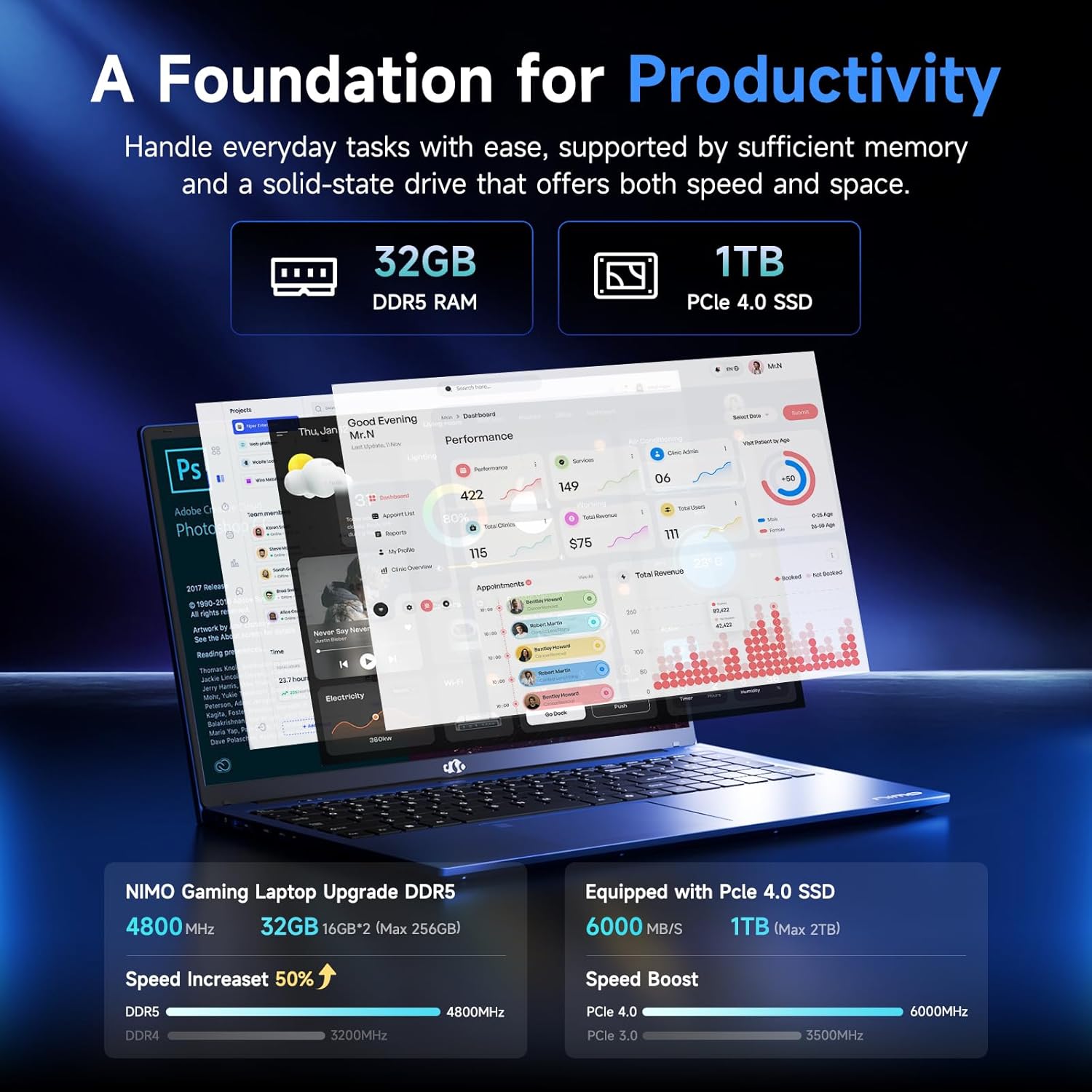
Figure 3.3: Illustration of the 32GB DDR5 RAM and 1TB PCIe 4.0 SSD, highlighting their speed and capacity.
3.2 Portas e Conectores
The NIMO N159 laptop provides a variety of ports for connectivity:

Figura 3.4: Detalhado view of the laptop's ports and their functions.
- Lado Esquerdo: Kensington Lock, Audio Jack, USB 3.2 Gen 1, USB 2.0, Micro SD Reader.
- Lado direito: Type-C Gen2 (Multifunction), USB 3.2 Gen 1, HDMI 2.0, Type-C Gen2 (Multifunction).
3.3 Energia e bateria

Figure 3.5: Battery and charging capabilities of the NIMO N159 laptop.
The laptop is equipped with a 54Wh smart battery. It supports fast charging via the included 100W Type-C PD charger, providing approximately 5 hours of usage from a 1-hour charge.
3.4 Keyboard and Fingerprint Unlock
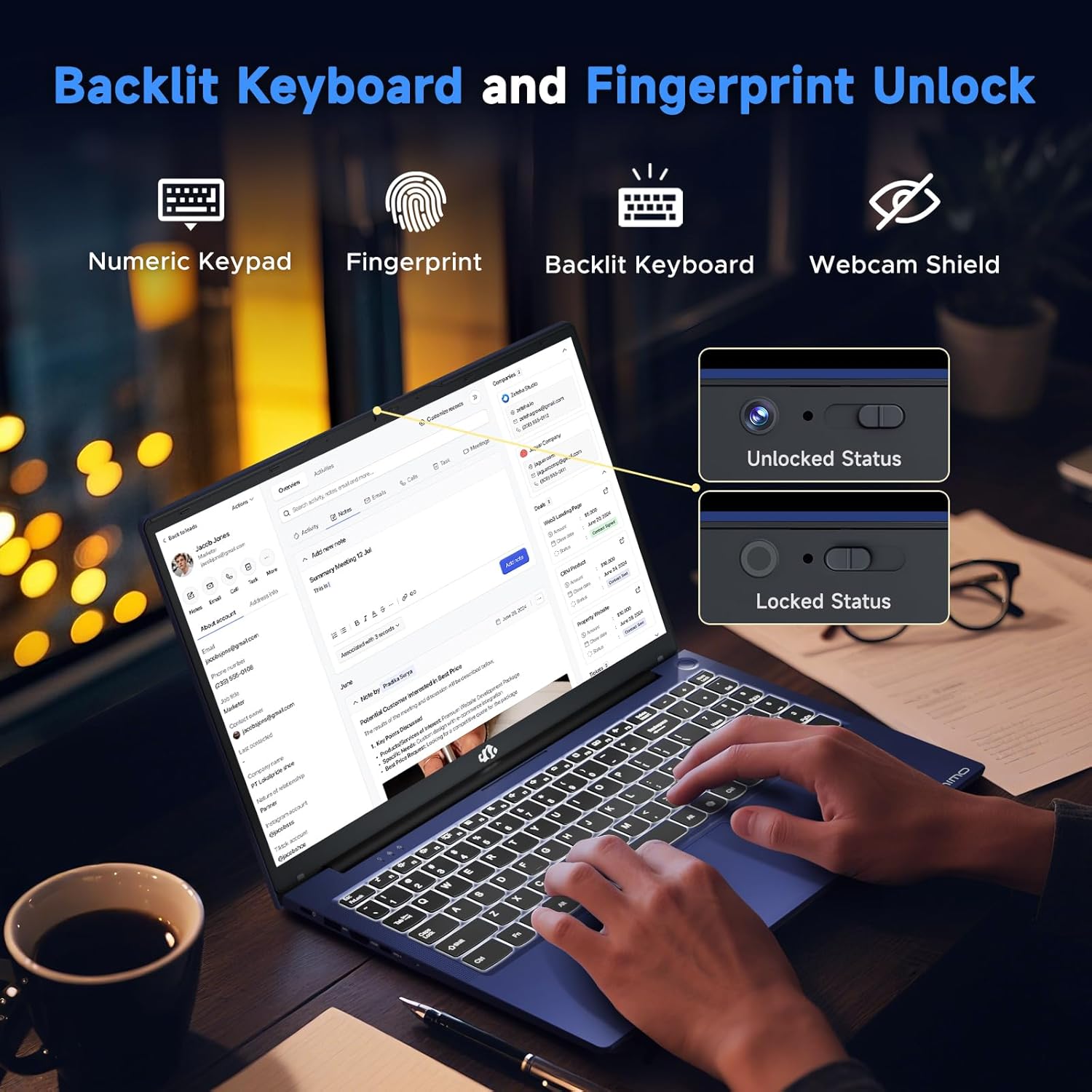
Figure 3.6: Features of the backlit keyboard, numeric keypad, fingerprint unlock, and webcam shield.
The keyboard features backlighting for use in low-light conditions and includes a numeric keypad. The fingerprint reader is integrated into the touchpad for secure and quick access.
3.5 Exibição
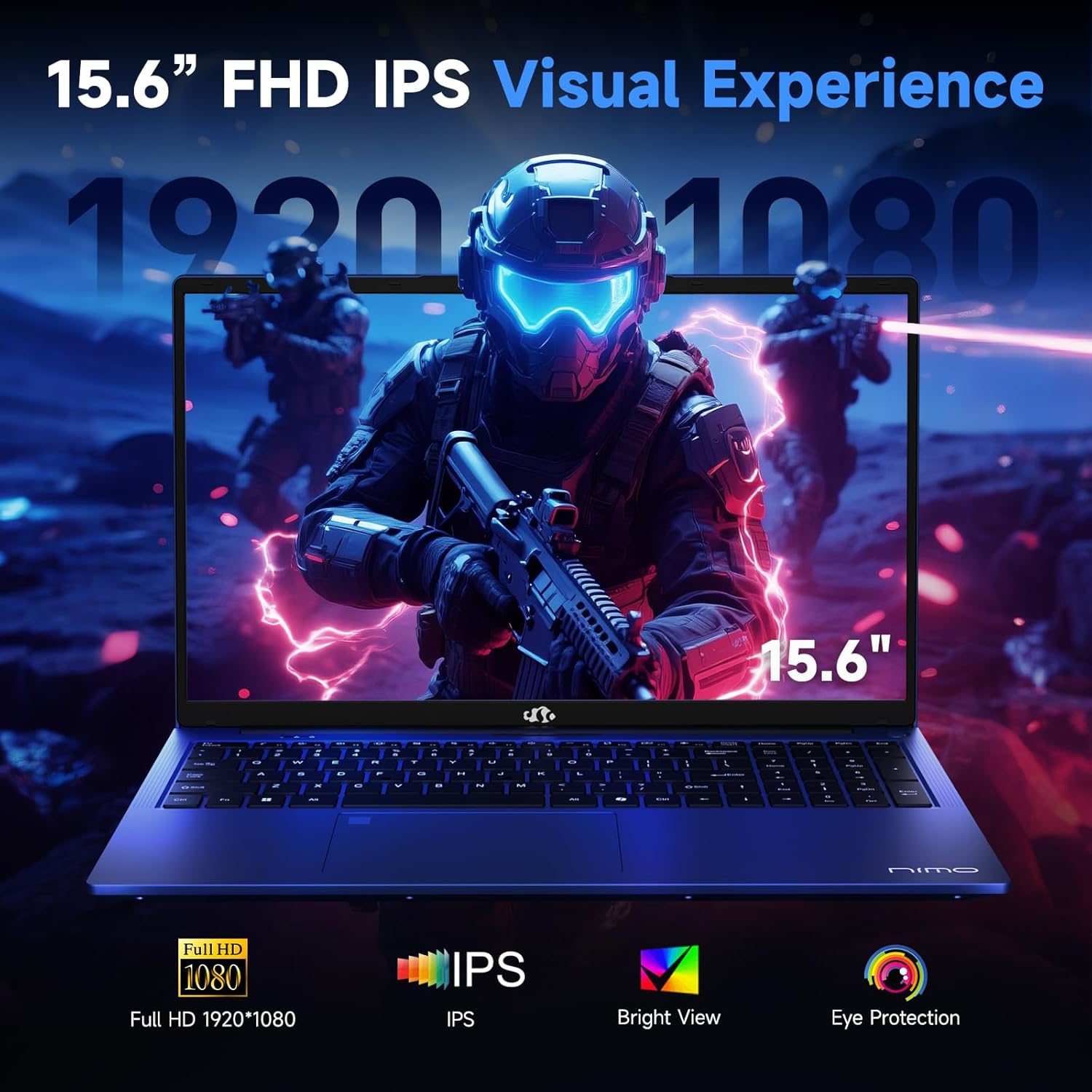
Figure 3.7: Visual representation of the 15.6-inch FHD IPS display quality.
The 15.6-inch Full HD (1920x1080) IPS Anti-Glare Display offers vibrant visuals and a wide viewing angle, suitable for various tasks from work to entertainment.
4. Configuração
4.1 Inicialização
- Descompacte: Retire cuidadosamente o laptop e todos os acessórios da embalagem.
- Conecte a energia: Plug the Type-C 100W PD Fast Charger into a power outlet and connect the Type-C connector to one of the multifunction Type-C ports on the laptop.
- Primeira inicialização: Open the laptop lid and press the power button, typically located on the top-right of the keyboard or side.
- Instalação do Windows: Siga as instruções na tela para concluir a configuração do Windows 11 Home, incluindo idioma, região, conexão de rede e criação de conta de usuário.
4.2 Conectando a uma rede
- Wi-fi: During Windows setup or later, select your Wi-Fi network from the available list and enter the password.
- Wired (Optional): If an Ethernet adapter (not included) is used with a USB port, connect an Ethernet cable to the adapter and then to your router/modem.
5. Instruções de operação
5.1 Ligar/Desligar
- Ligar: Pressione o botão liga/desliga.
- Desligar: Click the Start button in Windows, then Power > Shut down.
- Dormir: Feche a tampa ou clique no botão Iniciar e, em seguida, em Ligar/Desligar > Suspender.
5.2 Usando o teclado
- Controle de luz de fundo: Press the designated function key (e.g., F9) to cycle through backlight brightness levels (off, low, medium, high).
- Teclas de função: Use the Fn key in combination with F1-F12 for various shortcuts (e.g., volume, brightness, Wi-Fi toggle).
5.3 Using the Touchpad and Fingerprint Sensor
- Painel tátil: Suporta gestos multitoque para navegação. Consulte as configurações do Windows para personalização.
- Desbloqueio de impressão digital: Enroll your fingerprint through Windows Hello settings for secure login. Place your registered finger on the sensor located on the touchpad to unlock the device.
5.4 Conectando dispositivos externos
Use the available USB-A, USB-C, and HDMI ports to connect peripherals such as external monitors, USB drives, mice, and keyboards. The Type-C Gen2 ports support multifunctionality, including data transfer and video output.
6. Manutenção
6.1 Limpeza
- Tela: Use um pano macio e sem fiapos levemente dampLimpe com água ou um produto de limpeza para telas. Não borrife líquido diretamente na tela.
- Teclado e chassi: Use um pano macio e seco. Para sujeira persistente, um pano levemente umedecidoamp Pode-se usar um pano, garantindo que nenhum líquido entre nas aberturas.
- Portas: Use ar comprimido para remover cuidadosamente a poeira das entradas.
6.2 Cuidados com a bateria
- Evite descarregar completamente a bateria com frequência.
- Store the laptop in a cool, dry place if not used for extended periods, with the battery charged to around 50-60%.
- Use only the provided NIMO charger or a compatible 100W Type-C PD charger.
6.3 Atualizações de Software
Regularly check for and install Windows updates and driver updates to ensure optimal performance and security. These can typically be found in Windows Settings > Windows Update.
7. Solução De Problemas
This section addresses common issues you might encounter with your NIMO N159 laptop.
| Problema | Possível causa | Solução |
|---|---|---|
| O laptop não liga. | Low battery, power adapter issue, or hardware fault. | Ensure the charger is properly connected and the outlet is working. Try charging for at least 30 minutes. If the issue persists, contact support. |
| A tela está em branco ou preta. | Display settings, external monitor conflict, or driver issue. | Press Fn + F7 (or relevant display toggle key) to cycle display modes. Disconnect any external monitors. Restart the laptop. |
| Problemas de conexão Wi-Fi. | Incorrect password, router issue, or Wi-Fi adapter disabled. | Verify Wi-Fi password. Restart your router. Check Windows settings to ensure Wi-Fi is enabled. |
| Meu laptop está lento. | Too many applications open, low storage, or outdated drivers. | Close unnecessary applications. Check available storage. Update Windows and drivers. Run a malware scan. |
| O sensor de impressões digitais não está funcionando. | Finger not clean, sensor dirty, or software issue. | Ensure your finger and the sensor are clean and dry. Re-enroll your fingerprint in Windows Hello settings. |
8. Especificações
Detailed technical specifications for the NIMO N159 laptop:
| Recurso | Detalhe |
|---|---|
| Marca | NIMO |
| Nome do modelo | NIMO N159B |
| Tamanho da tela | 15.6 polegadas |
| Resolução da tela | 1920 x 1080 pixels (FHD IPS) |
| Processador | AMD Ryzen 7 7735HS (8 Cores, up to 4.75 GHz) |
| BATER | 32 GB DDR5 (4800 MHz) |
| Disco rígido | 1024 GB SSD (PCIe 4.0) |
| Coprocessador gráfico | AMD Radeon 680M (Integrada) |
| Sistema operacional | Windows 11 Início |
| Tipo sem fio | 802.11a/b/g/n/ac |
| Portas USB 2.0 | 1 |
| Portas USB 3.0 | 4 |
| Portas Tipo-C | 2 (Gen2, Multifunction) |
| Porta HDMI | 1 (HDMI2.0) |
| Duração média da bateria | 5 horas (54Wh) |
| Peso do item | 3.8 libras |
| Dimensões do produto | 14.07 x 8.98 x 0.76 polegadas |
| Cor | Azul |
| Características especiais | Backlit Keyboard, Fingerprint Reader, HD Audio, Numeric Keypad |
9. Garantia e Suporte
NIMO is committed to providing quality products and customer satisfaction.
- Garantia do fabricante: Your NIMO N159 laptop is covered by a 2-Year Manufacturer's Warranty from Nimo Direct Inc. This warranty covers defects in materials and workmanship under normal use.
- Política de devolução: A 90-Day Hassle-Free Return Policy is offered by Nimo Direct Inc. from the date of purchase.
9.1 Contate o Suporte
For technical assistance, warranty claims, or product-related inquiries, please contact NIMO customer support:
- E-mail: serviço@nimopc.com
- On-line: Visit the official NIMO website for further support options and FAQs.
Our dedicated support team is available to assist you with any issues or replacements.


