1. Introdução
The THINKWARE U3000 PRO is a state-of-the-art 4K dual dash camera system designed to provide comprehensive vehicle surveillance. Featuring Sony STARVIS 2 sensors for exceptional video clarity day and night, advanced parking modes with radar detection, and seamless connectivity, this device offers reliable recording and enhanced driver safety. This manual provides essential information for the proper installation, operation, and maintenance of your U3000 PRO dash cam.
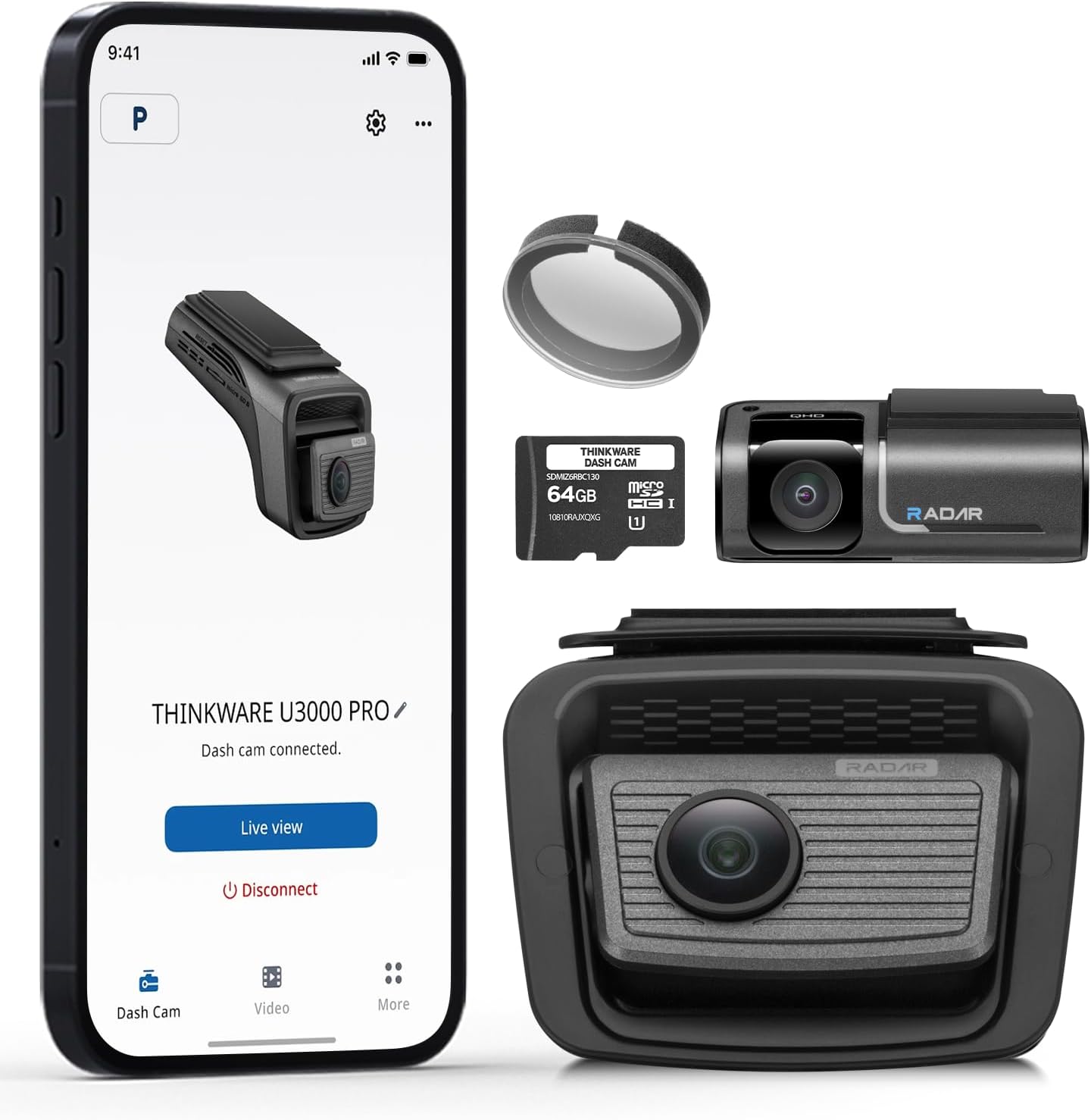
Figure 1.1: The THINKWARE U3000 PRO 4K Dual Dash Cam system, including the main front unit and rear camera.
2. Conteúdo da embalagem
Verifique se todos os itens estão presentes na embalagem do seu produto:
- Main Dash Cam Unit (Front)
- Câmera Traseira
- OBD-II Power Cable
- Cabo da câmera traseira
- Windshield Mount with 3M Adhesive
- Cartão MicroSD de 64 GB com adaptador
- Circular Polarizing (CPL) Filter
- Heat Blocking Film
- Ferramenta de instalação
- Guia de início rápido
- Cartão de garantia

Figure 2.1: Visual representation of all components included in the U3000 PRO package.
3. Recursos do Produto
3.1 Gravação em Alta Resolução
The U3000 PRO captures ultra-clear footage with its dual Sony STARVIS 2 sensors. The front camera records in 4K (2160P), and the rear camera records in 2K (1440P). Both cameras feature Dual HDR (High Dynamic Range) to balance harsh highlights and deep shadows, ensuring clear details in various lighting conditions.

Figure 3.1: Illustration of 4K (2160P) front recording and 2K (1440P) rear recording capabilities.

Figure 3.2: Dual HDR processing ensures balanced exposure in challenging lighting conditions.
3.2 Advanced Parking Surveillance
The built-in Radar Parking Mode utilizes radar sensors in both front and rear cameras to detect motion and impacts, activating recording only when necessary. This conserves power and extends surveillance duration. Parking modes include:
- Radar Buffered Parking Mode: Records 20-second clips (10 seconds before and after an event) when motion or impact is detected, with 10% lower power consumption than previous models.
- Modo de economia de energia: Registros footage only when impacts are detected, significantly reducing power consumption for extended parking surveillance.
- Lapso de tempo: Records at 2 frames per second (fps) for continuous, uninterrupted video over extended periods with minimal power increase.
- Detecção de movimento e impacto: Initiates a 20-second recording upon detecting motion in front of the camera lenses or vehicle impact.
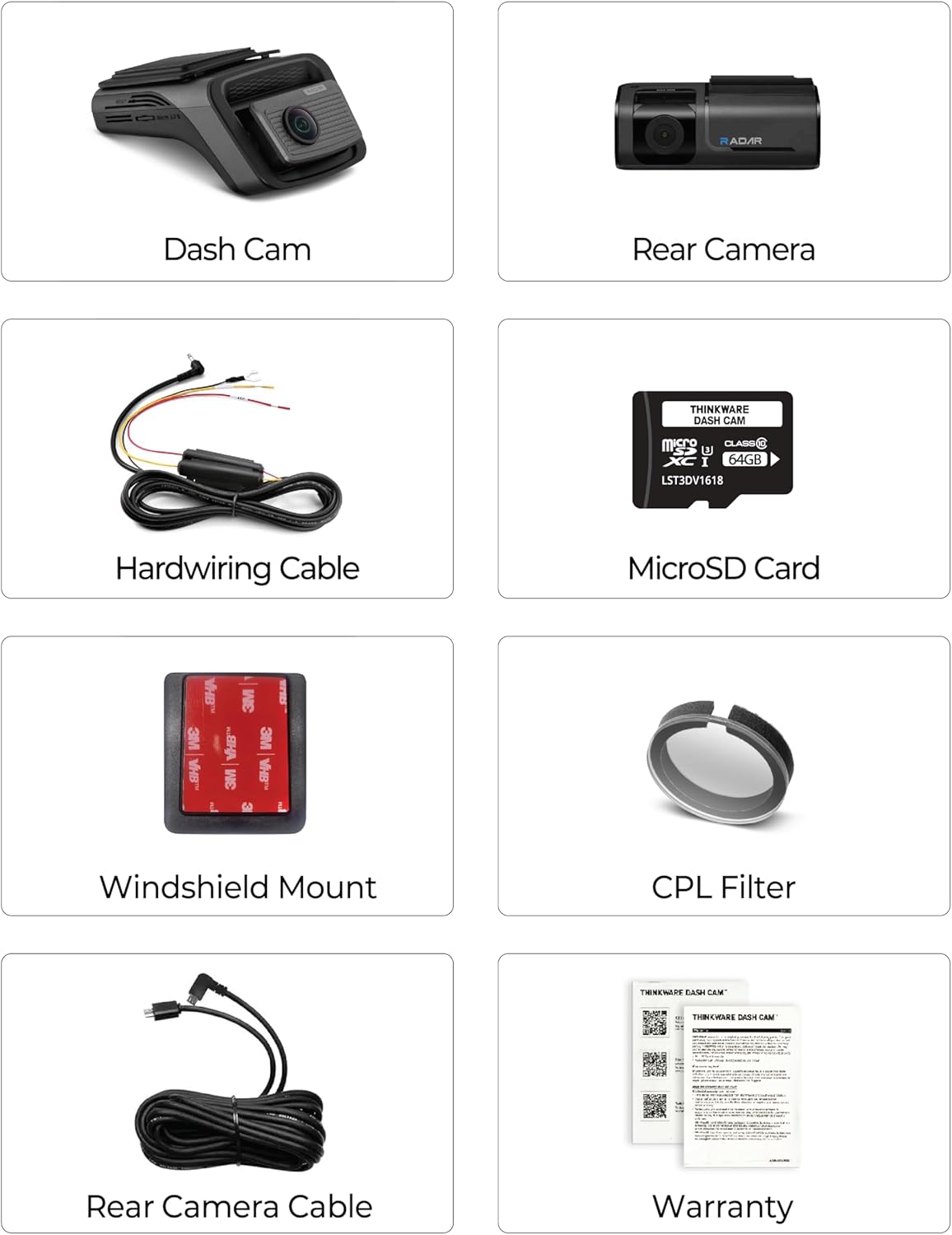
Figure 3.3: Radar Buffered Parking Mode provides efficient and comprehensive parking protection.
3.3 Conectividade
The U3000 PRO features built-in Wi-Fi and Bluetooth for seamless connection to the THINKWARE DASH CAM LINK app on your smartphone (Android or iOS). This allows for easy management of settings, live view, video playback, and firmware updates. Integrated GPS tags speed and location data to recordings.

Figure 3.4: Bluetooth and 5GHz Wi-Fi pairing for fast data transfer and app control.
3.4 Driver Assistance Systems (ADAS)
Enhance your driving safety with ADAS features:
- Sistema de Alerta de Colisão Frontal (FCWS): Alerts the driver when the distance to the vehicle ahead becomes too close at speeds exceeding 25 mph.
- Aviso de Partida do Veículo da Frente (FVDW): Notifies the driver when the vehicle in front starts to move from a full stop.
- Traffic Signal Alert: Provides instant alerts when a traffic light changes from red to green.
- Safety Camera Alerts: Provides real-time alerts for speed and red light cameras.
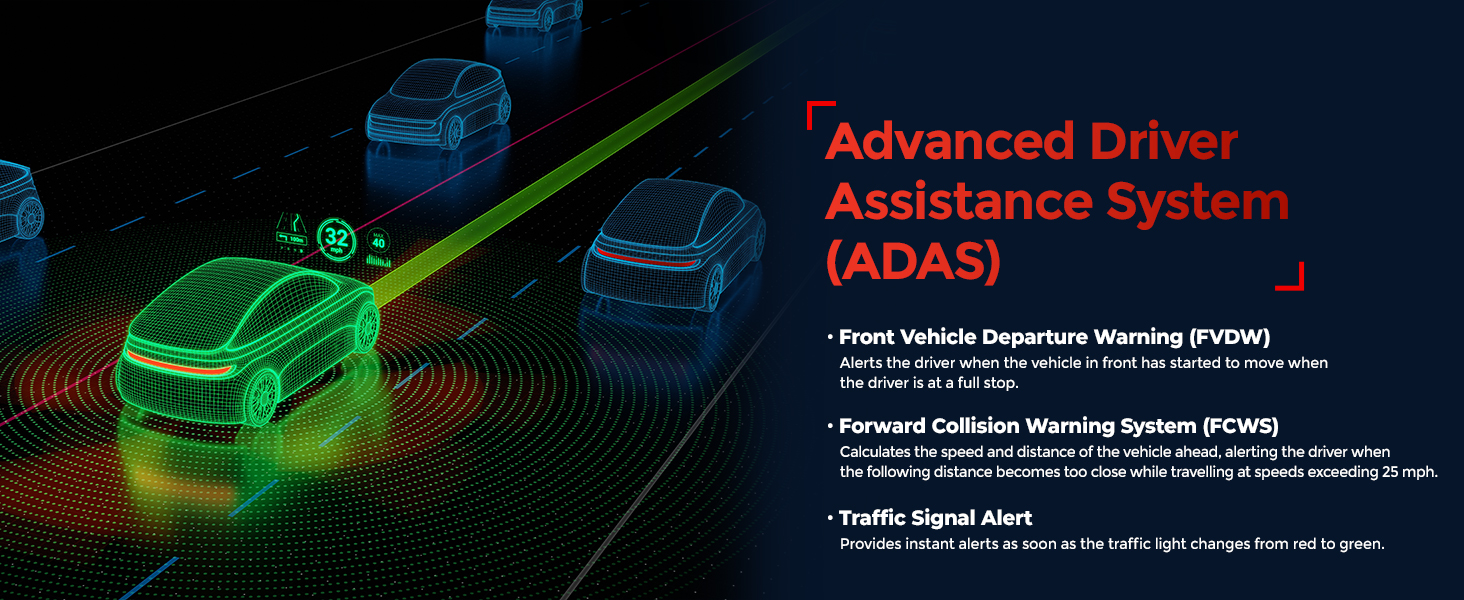
Figure 3.5: ADAS features provide real-time alerts for enhanced driving safety.
3.5 Super Night Vision 4.0
Designed for low-light performance, Super Night Vision 4.0 utilizes Sony's STARVIS 2 sensor and advanced tuning to brighten dark scenes and reduce grain, ensuring clear and usable footage even on dimly lit roads.

Figure 3.6: Super Night Vision 4.0 enhances clarity for nighttime recordings.
3.6 Efficient Video Encoding
The U3000 PRO uses H.265 High-Efficiency Video Coding (HEVC), which compresses video files up to 1.7x more efficiently than AVC (H.264). This allows for more hours of ultra-high-resolution footage without compromising video quality or maximizing storage.

Figure 3.7: H.265 HEVC technology for optimized video storage.
3.7 Armazenamento expansível
The dash cam supports MicroSD cards up to 512GB, providing over 20 hours of continuous recording before auto-overwrite. For optimal performance, use a THINKWARE-recommended MicroSD card.

Figure 3.8: The U3000 PRO supports high-capacity MicroSD cards for extended recording.
3.8 acessórios opcionais
Enhance your dash cam's functionality with optional accessories:
- THINKWARE CONNECTED LTE Module: Enables remote live view, impact notifications, geo-fencing, and emergency messaging. Requires a separate service plan. Note: LTE Module and Cabin Cam cannot be used simultaneously.
- Interior Infrared Camera: Provides a third channel for recording the inside of your vehicle in Full HD, even in total darkness, using infrared technology. Ideal for rideshare drivers. Note: Cabin Cam and LTE Module cannot be used simultaneously.
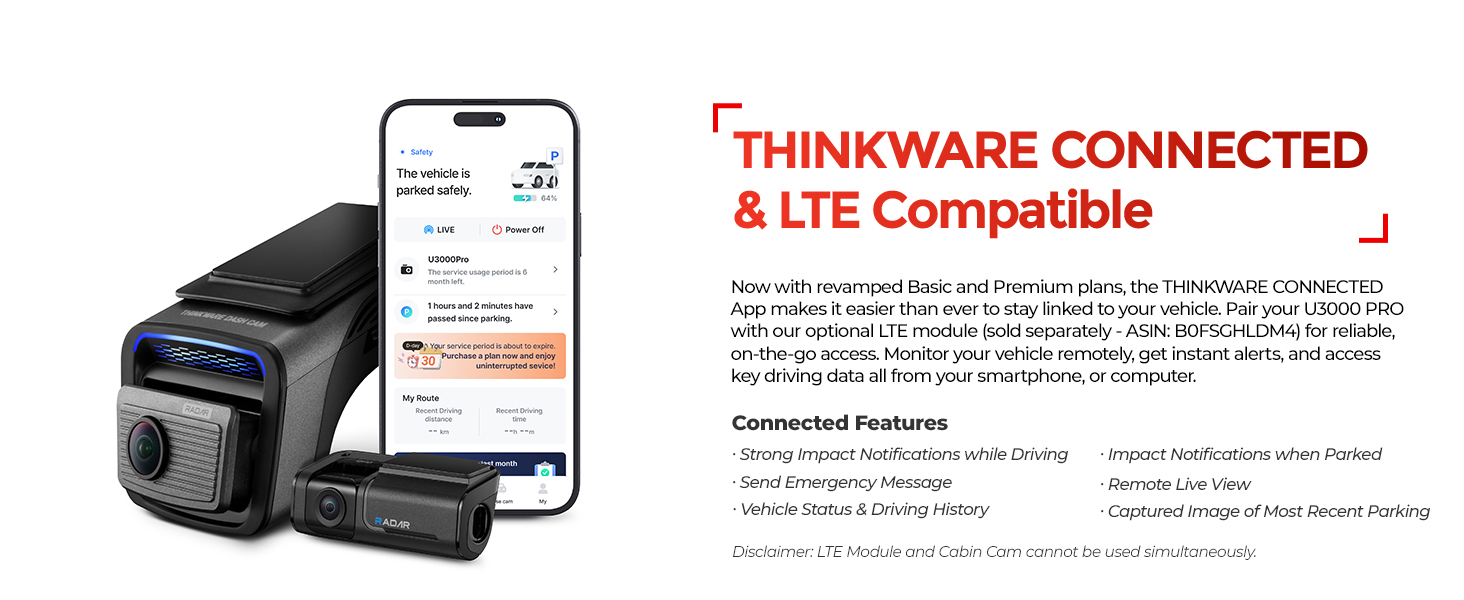
Figure 3.9: The optional LTE Module provides advanced connected features.
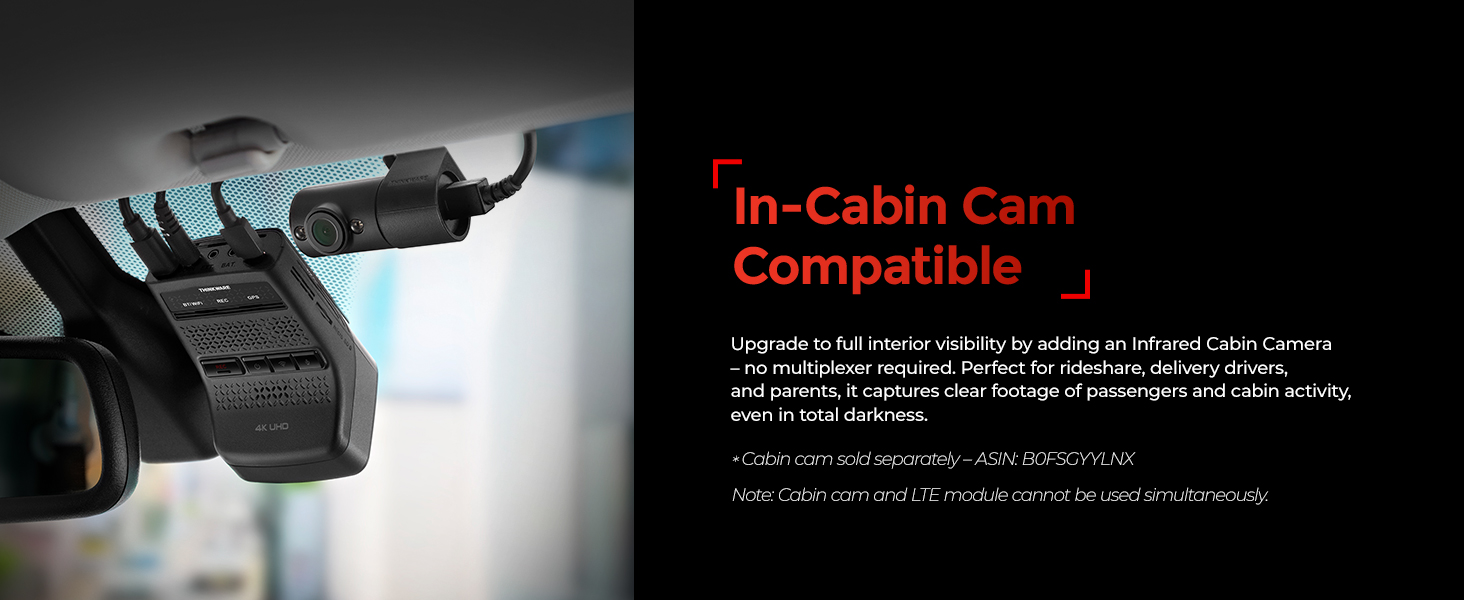
Figure 3.10: The optional Interior Infrared Camera for in-cabin recording.
4. Configuração
4.1 Instalando a câmera veicular
- Prepare o para-brisa: Limpe a área do para-brisa onde a câmera veicular será instalada. Certifique-se de que esteja livre de poeira e graxa.
- Apply Heat Blocking Film: If desired, apply the included heat blocking film to the mounting area on the windshield to help reduce heat exposure to the dash cam.
- Fixe o suporte: Secure the windshield mount to the main dash cam unit. Remove the protective film from the 3M adhesive on the mount and firmly press it onto the prepared area of the windshield. Hold for at least 30 seconds to ensure a strong bond.
- Instalar câmera traseira: Mount the rear camera on the rear windshield using its 3M adhesive. Connect the rear camera to the main unit using the provided rear camera cable. Route the cable neatly along the vehicle's headliner and A-pillars.
- Insira o cartão MicroSD: Open the MicroSD card slot cover on the main unit and insert the 64GB MicroSD card.
- Attach CPL Filter: To minimize dashboard reflections and enhance color contrast, attach the Circular Polarizing (CPL) filter to the front camera lens. Align the guide point on the filter vertically with the camera lens.
4.2 Connecting Power (OBD-II Cable)
The U3000 PRO includes an OBD-II power cable for continuous power, enabling parking surveillance modes. Follow these steps:
- Set up the OBD-II Cable Switch: Before plugging the OBD-II cable into your vehicle's OBD-II port, configure the switches on the cable according to your vehicle type and desired parking mode.
- Tipo de veículo: Select 'EV' for Electric/Hybrid (White LED) or 'F' for Internal Combustion Engine (Blue LED).
- Modo de estacionamento: Select 'D' to disable parking mode or 'P' to enable parking mode.
Important: Changes to these settings will not apply if made after plugging the cable into the OBD-II port.
- Localize a porta OBD-II: The OBD-II port is typically located beneath the steering wheel, near the driver's footwell, or inside the driver's side lower fuse box. The exact location may vary by vehicle make and model.
- Plug in the OBD-II Connector: Once the switches are set, plug the OBD-II connector into your vehicle's OBD-II port.
- Conecte-se à Dash Cam: Plug the other end of the OBD-II power cable into the DC-IN port on the main dash cam unit.

Figure 4.1: Steps for connecting the dash cam to the mobile app via Wi-Fi.
5. Operação
5.1 Ligar/Desligar
The dash cam will automatically power on when the vehicle's ignition is turned on (if connected via OBD-II or hardwiring). It will power off automatically when the ignition is off, or continue recording in parking mode if enabled.
5.2 Using the THINKWARE DASH CAM LINK App
The mobile app allows you to control and manage your dash cam. To connect:
- Download the 'THINKWARE DASH CAM LINK' app from the App Store or Google Play Store.
- Ligue a ignição do seu veículo.
- Open the app and select 'Dash Cam Registration'. Choose 'U3000 PRO'.
- Follow the on-screen prompts to connect via Wi-Fi. A pop-up message will ask to connect to the Thinkware Wi-Fi network; click 'Join'.
- Once connected, you can access live view, recorded videos, and settings.
5.3 Modos de gravação
The U3000 PRO supports various recording modes:
- Gravação contínua: Automatically records while driving.
- Gravação de eventos: Triggered by impacts or sudden braking/acceleration.
- Gravação manual: Initiated by pressing the 'REC' button on the dash cam.
- Gravação de estacionamento: Activated when the vehicle is parked, utilizing radar, motion, or time-lapse modes (if enabled).
6. Manutenção
6.1 Gerenciamento de cartão microSD
Regularly format the MicroSD card to maintain optimal performance and prevent data corruption. This can be done through the THINKWARE DASH CAM LINK app or by using a computer. Replace the MicroSD card periodically (e.g., every 6-12 months) as they have a limited lifespan due to continuous overwriting.
6.2 Limpeza da câmera veicular
Wipe the camera lenses and body with a soft, dry cloth. Avoid using harsh chemicals or abrasive materials that could scratch the lenses or housing.
6.3 atualizações de firmware
Keep your dash cam's firmware updated to ensure the latest features and bug fixes. Firmware updates can be performed via the THINKWARE DASH CAM LINK app.
7. Solução De Problemas
If you encounter issues with your U3000 PRO, refer to the following common solutions:
- A câmera veicular não liga: Check the power cable connection to both the dash cam and the vehicle's OBD-II port. Ensure the vehicle's ignition is on or that the OBD-II cable switches are correctly configured for parking mode.
- Recording Issues (Grainy/Unclear Footage): Ensure the lenses are clean and free from smudges. Check if the CPL filter is correctly installed and adjusted. Verify that the MicroSD card is not full or corrupted; try formatting it.
- Problemas de conexão Wi-Fi: Ensure Bluetooth is enabled on your smartphone and the dash cam. Restart both the dash cam and your phone. Try reconnecting through the app.
- O modo de estacionamento não está ativando: Confirm that the OBD-II cable is correctly installed and configured for parking mode ('P' setting). Ensure your vehicle's battery voltage é suficiente.
- Superaquecimento: Ensure the heat blocking film is properly applied. If the dash cam overheats frequently, consider parking in shaded areas or using a sunshade. The device has integrated thermal protection to prevent damage.
For further assistance, please contact THINKWARE customer support or visit the official THINKWARE website for detailed FAQs and support resources.
8. Especificações
| Recurso | Especificação |
|---|---|
| Dimensões do produto | 5.5 x 3.86 x 7.48 polegadas |
| Peso do item | 2.09 libras |
| Número do modelo do item | U3000 |
| Tecnologias de conectividade | Wi-fi |
| Resolução de captura de vídeo | Front: 2160p (4K), Rear: 1440p (2K) |
| Sensor de imagem | Sony STARVIS 2 |
| Características especiais | 4K STARVIS 2 Sensor, Ambarella CPU, Built-in Front & Rear Radar Parking Mode, Event-Ready Motion & Impact Capture, Lifelike Image Processing (WDR, Smart Auto-Exposure, Dewarping), Super Night Vision 4.0 |
| Capacidade máxima do cartão microSD | 512 GB |
| Tipo de montagem | Suporte para pára-brisa |
| Tipo de serviço do veículo | Ônibus, Carro, Minivan, Trailer, Caminhão |
9. Garantia e Suporte
9.1 Informações de garantia
THINKWARE warrants the original purchaser that the product is free from defects in material and workmanship under normal use. The warranty period is as follows:
- Main Dash Cam Unit and all Accessories in Box: 1 ano
- Cartão MicroSD: 6 meses
Esta garantia limitada não cobre:
- Damage due to normal wear and tear, misuse, lack of maintenance, accident, modification, alteration, or repairs by an unauthorized entity.
- Damage caused by use with products or ancillary equipment not supplied or certified by THINKWARE.
- Data loss or corruption for any reason.
THINKWARE Dash Cam records and saves video of vehicle accidents; however, it does not guarantee to record all accidents. Accidents with light impact may not activate the impact detection sensor.
9.2 Suporte ao cliente
If service is required, first check with the store where it was originally purchased. If the unit fails to operate in a satisfactory manner, and you believe it meets the criteria for warranty replacement or repair, please contact THINKWARE customer support via their official website: www.thinkware.com/Support.


