1. Introdução
Welcome to the user manual for your NIMO N152S 15.6-inch Laptop. This guide provides essential information on setting up, operating, maintaining, and troubleshooting your new device. Please read this manual thoroughly to ensure optimal performance and longevity of your laptop.
2. Produto acabadoview
2.1 Principais Características
- Desempenho poderoso: Equipped with an AMD Ryzen 5 3500U processor and integrated Radeon graphics for smooth multitasking and efficient performance.
- Tela Full HD envolvente: A 15.6-inch Full HD (1920x1080) IPS display with a 180° wide hinge for vibrant visuals and wide viewângulos de inclinação.
- Design fino e leve: Crafted with a sleek metal top cover, weighing under 3.7 lbs and measuring just 19.2 mm thin.
- Conectividade aprimorada: Features 2 USB-A, 2 USB-C (full function PD/DP/Data), HDMI, MicroSD, and a 3.5mm audio jack.
- Expandable Memory & Storage: Supports up to 32GB DDR4 RAM and M.2 PCIe 3.0 x4 SSD for future-proof upgrades.
- Smart Security & Comfort: Includes a fingerprint reader on the touchpad, a backlit keyboard for low-light use, and dual microphones.
2.2 Identificação do Componente
Familiarize yourself with the various components of your NIMO N152S laptop as illustrated below.

Figura 2.1: Frente view of the NIMO N152S laptop, showcasing its sleek design and key features like Windows 11, 32GB RAM, 1TB SSD, Full HD display, AMD Ryzen 5, Type-C PD Charger, Backlit Keyboard, and Fingerprint Reader.

Figure 2.2: Illustration of the AMD Ryzen 5 processor, detailing its specifications including 4 Cores, 8 Threads, 15W Power Consumption, and 3.7 GHz Turbo Boost, indicating its capability for daily tasks and light gaming.

Figure 2.3: The NIMO laptop screen showcasing a vivid Full HD (1920x1080) IPS display, highlighting features like bright view and eye protection, with an 85% screen-to-body ratio.

Figura 2.4: Detalhado view of the NIMO laptop's expanded connectivity options, labeling ports such as Type-C (Charge Only), USB 3.0, HDMI, Type-C (Full Function), Charge LED, Micro SD Reader, USB 2.0, USB 3.0, Headphone Combo, and Kensington Lock.
3. Configuração inicial
3.1 Charging the Laptop
Before first use, fully charge your NIMO laptop. Connect the provided 65W Type-C PD charger to the USB-C charging port on the laptop and then to a power outlet. The charge LED indicator will illuminate to confirm charging.

Figure 3.1: The 65W Type-C PD Charger, designed for universal compatibility with laptops, tablets, and smartphones, simplifying your charging needs compared to multiple chargers.
3.2 Ligando o aparelho pela primeira vez
- Abra a tampa do laptop.
- Pressione o botão liga/desliga localizado no teclado.
- Siga as instruções na tela para concluir a configuração inicial do Windows 11, incluindo a seleção do idioma, a conexão de rede e a criação da conta de usuário.
4. Operating Your NIMO Laptop
4.1 Ligar/Desligar e Modo de Suspensão
- Ligar: Pressione o botão liga/desliga.
- Desligar: Clique no botão Iniciar e, em seguida, em Energia > Desligar.
- Modo dormir: Feche a tampa ou clique no botão Iniciar e, em seguida, em Ligar/Desligar > Suspender.
4.2 Utilizando o teclado e o touchpad
Your NIMO laptop features a full-sized keyboard with a numeric keypad and a responsive touchpad.
- Teclado retroiluminado: Imprensa Tecla Fn + F10 (or the key with the backlight icon) to toggle the keyboard backlight on/off or adjust brightness levels.
- Painel tátil: Suporta gestos multitoque para navegação. Consulte as configurações do Windows para personalização.
- Teclado numérico: Use the dedicated numeric keypad for efficient data entry.

Figure 4.1: The NIMO laptop keyboard, emphasizing its backlit keys, integrated touchpad, fingerprint reader, and numeric keypad, designed for comfortable typing in various lighting conditions.
4.3 Leitor de impressão digital
The integrated fingerprint reader on the touchpad provides quick and secure access to your laptop.
- Acesse Configurações do Windows > Contas > Opções de entrada.
- Set up Windows Hello Fingerprint.
- Siga as instruções na tela para cadastrar suas impressões digitais.
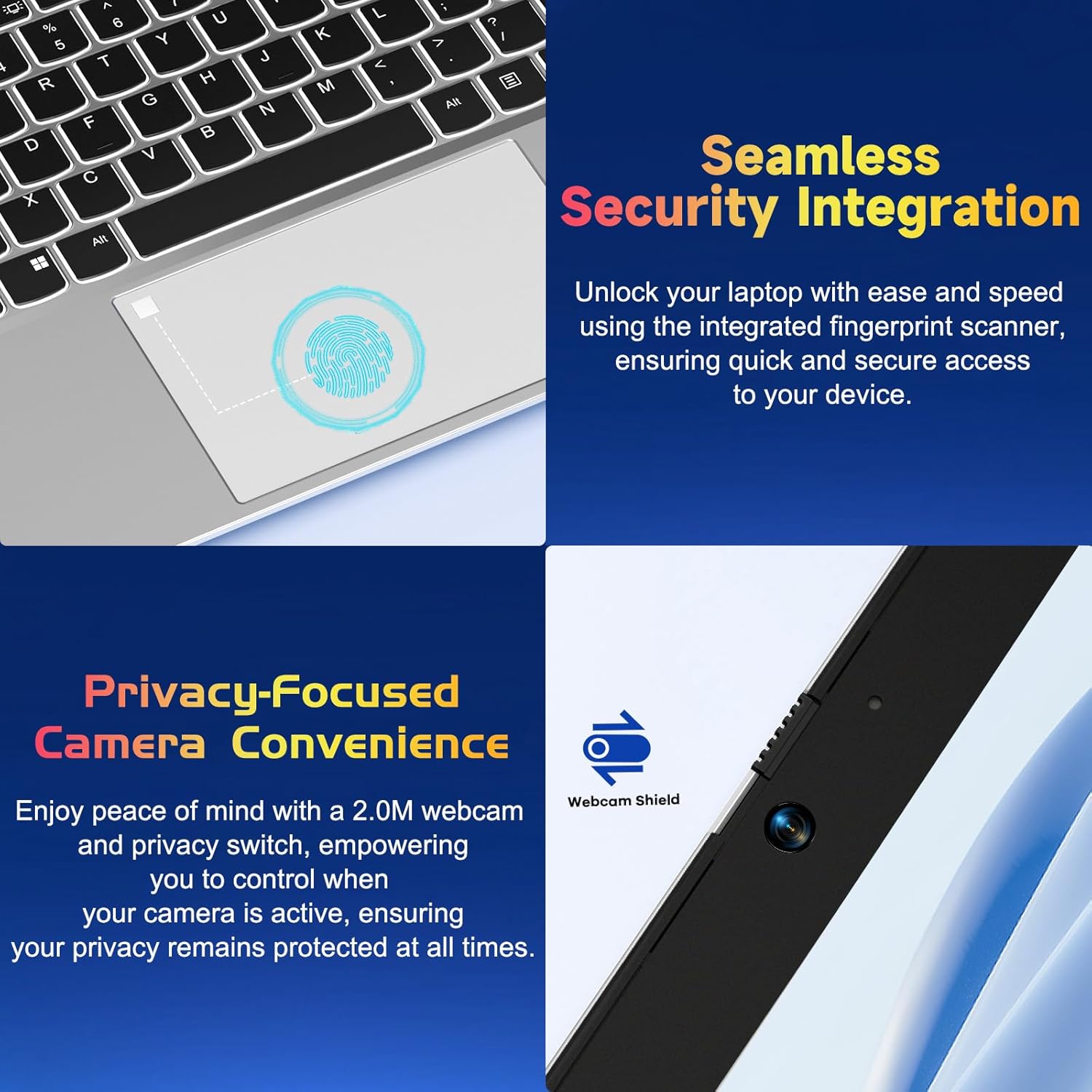
Figura 4.2: Close view of the NIMO laptop's touchpad, highlighting the integrated fingerprint scanner for seamless security integration, alongside the privacy-focused webcam with a physical shield.
4.4 Conectando Periféricos
Seu laptop oferece diversas portas para conectar dispositivos externos:
- Portas USB-A: Para conectar dispositivos USB padrão, como mouses, teclados ou discos rígidos externos.
- Portas USB-C: Two full-function USB-C ports support Power Delivery (PD), DisplayPort (DP), and data transfer. One is dedicated for charging.
- Porta HDMI: Conecte-se a monitores ou projetores externos.
- Leitor de cartão microSD: Insert a MicroSD card for additional storage or data transfer.
- Conector de áudio de 3.5 mm: Para fones de ouvido ou alto-falantes externos.
4.5 Webcam Privacy
The laptop includes a 2.0MP webcam with a physical privacy shield. Slide the shield to cover the camera lens when not in use to ensure your privacy.
5. Manutenção e Cuidados
- Limpeza: Use um pano macio e sem fiapos levementeampened with water or a screen cleaner to clean the display and exterior. Avoid harsh chemicals.
- Atualizações de software: Atualize regularmente o sistema operacional Windows e os drivers para garantir desempenho e segurança ideais.
- Cuidados com a bateria: Para prolongar a vida útil da bateria, evite temperaturas extremas e tente manter a carga entre 20% e 80% sempre que possível.
- Armazenar: Guarde o laptop em local fresco e seco, longe da luz solar direta e de temperaturas extremas.
6. Solução De Problemas
This section addresses common issues you might encounter with your NIMO laptop.
| Emitir | Solução possível |
|---|---|
| O laptop não liga. | Ensure the laptop is charged. Connect the charger and wait a few minutes before attempting to power on again. If unresponsive, perform a hard reset by holding the power button for 15 seconds. |
| A tela está em branco ou piscando. | Try adjusting the screen brightness (Fn + F5/F6). If connected to an external monitor, ensure the cable is secure. Restart the laptop. |
| Keyboard backlight is not working. | Press Fn + F10 (or the key with the backlight icon) to cycle through backlight settings. Ensure the function keys are enabled. |
| Fingerprint reader not recognized. | Ensure your finger is clean and dry. Re-register your fingerprint in Windows Hello settings if the issue persists. |
| Problemas de conexão Wi-Fi. | Check if Wi-Fi is enabled (Fn + F12 or Windows settings). Restart your router and laptop. Update Wi-Fi drivers if necessary. |
| Meu laptop está lento. | Close unnecessary applications. Check Task Manager for resource-intensive processes. Ensure Windows and drivers are up to date. Consider running a disk cleanup. |
7. Especificações técnicas
| Recurso | Especificação |
|---|---|
| Marca | NIMO |
| Nome do modelo | NIMO N152S |
| Número do modelo do item | NIMO N152 |
| Tamanho da tela | 15.6 polegadas |
| Resolução máxima da tela | 1920 x 1080 pixels (Full HD) |
| Processador | AMD Ryzen 5 3500U (3.7 GHz) |
| BATER | 32 GB DDR4 (3200 MHz) |
| Disco rígido | 1024 GB SSD (Solid State) |
| Coprocessador gráfico | AMD Integrated graphics |
| Sistema operacional | Windows 11 |
| Tipo sem fio | 802.11abg |
| Número de portas USB 2.0 | 1 |
| Duração média da bateria | 5 horas |
| Peso do item | 3.8 libras |
| Dimensões do produto | 14.07 x 8.98 x 0.76 polegadas |
| Cor | Prata Clássica |
| Traseira Webresolução da câmera | 2 MP |
| Fonte de energia | Alimentado por bateria |
| Baterias | 1 bateria de polímero de lítio necessária (incluída) |
8. Garantia e Suporte ao Cliente
8.1 Informações de garantia
Your NIMO N152S laptop comes with a comprehensive warranty:
- Política de devolução gratuita de 90 dias: You may return your NIMO laptop for any reason within 90 days of purchase.
- Garantia de 2 anos: All NIMO products are covered by a 2-year warranty for after-sales support.

Figure 8.1: NIMO's commitment to customer satisfaction, featuring a 90-day free return policy and a 2-year warranty for reliable support.
8.2 Suporte ao cliente
For any product-related questions, technical assistance, or warranty claims, please contact our U.S.-based support team:
- Visit the official NIMO webSite com recursos de suporte e opções de contato.
- Consulte a documentação da sua compra para obter informações de contato específicas.
Our team is dedicated to providing professional and high-quality customer service to resolve any issues you may encounter.


