Introdução
This manual provides detailed instructions for the proper use and maintenance of your Bikevee BKV100A GPS Bike Computer. Please read this manual thoroughly before using the device to ensure optimal performance and longevity. The BKV100A is designed to track your cycling data with precision, offering features such as GPS positioning, speed and distance measurement, and connectivity with external sensors.
Conteúdo da embalagem
Verifique se todos os itens estão presentes no seu pacote:
- Bikevee BKV100A GPS Bike Computer
- Cabo de carregamento USB
- Suporte de bicicleta padrão
- Almofada de borracha
- Rubber Rings (for mounting)
- Manual do usuário (este documento)

Image: The Bikevee BKV100A GPS Bike Computer displayed alongside its included accessories: a USB charging cable, a standard bike mount, a rubber pad, and two rubber rings.
Configurar
1. Device Mounting
Follow these steps to securely mount your Bikevee BKV100A to your bicycle handlebars:
- Place the rubber pad on your handlebar at the desired mounting location.
- Position the standard bike mount over the rubber pad.
- Use the rubber rings to secure the mount firmly to the handlebar.
- Align the Bikevee BKV100A with the mount, ensuring the device is horizontal.
- Attach the bicycle computer onto the stand by pressing it down.
- Turn the bicycle computer clockwise by 90 degrees until it locks into place.

Image: A visual guide showing the three steps for mounting the bike computer: placing it horizontally, attaching it to the stand, and turning it 90 degrees clockwise to secure.
2. Inicialização da alimentação e carregamento
Before first use, ensure the device is fully charged using the provided USB-C cable. Connect the cable to the device's USB-C port and a standard USB power source. The battery indicator on the screen will show charging status.
3. Connecting to the Link-S App
The Link-S app allows you to manage your device and sync ride data. Download the Link-S app from the Google Play Store or Apple App Store.
- Turn on the Bikevee BKV100A.
- Open the Link-S app on your smartphone.
- In the app, navigate to 'Device' and then 'Add Device'.
- Wait for the app to search for your cycling computer.
- Once found, click on the device name in the app.
- Enter the pairing code displayed on your cycling computer into the app.
- After successful connection, click 'Connected' and then enter the 'Device' page.

Image: A cyclist with a smartphone and the Bikevee BKV100A, illustrating the process of connecting the device to the Link-S app via Bluetooth for data upload and management.
4. Atualização de software
It is recommended to keep your device's software updated for the best experience and new features.
- Connect your Bikevee BKV100A to the Link-S app as described above.
- On the 'Device' page in the app, look for 'Check for new version'. If an update is available, a small red dot will appear.
- Click on 'Check for new version', then 'Firmware detection', and finally 'Upgrade'.

Image: A sequence of smartphone screenshots showing the steps to upgrade the cycling computer's software through the Link-S application, including device pairing and firmware update options.
Instruções de operação
1. Controles Básicos
The Bikevee BKV100A features three buttons for navigation and control:
- Botão esquerdo (Reproduzir/Pausar): Click to record ride data or pause recording. Long press for two seconds to stop recording ride data.
- Middle Button (Power/Backlight): Long press for two seconds to turn the device on or off. Short press to turn on/off the backlight while cycling.
- Right Button (Settings/Next Page): Click to navigate to the next page of data. Long press to enter the settings page.

Image: An illustration of the Bikevee BKV100A's display and buttons, with text descriptions detailing the functions of each button for riding page settings, including navigation, recording, and power control.
2. Setting Page Navigation
To adjust device settings:
- Pressione e segure o Botão direito para entrar na página de configurações.
- Use o Botão Esquerdo to navigate to the next setting page.
- Use o Botão direito to change the current data or option within a setting.
- Pressione e segure o Botão direito for two seconds to exit the settings page.

Image: A visual guide demonstrating how to navigate and modify settings on the Bikevee BKV100A, showing button presses for changing data and moving between setting pages.
3. Time Zone and Speed Unit Settings
To configure your time zone and preferred speed units:
- Pressione e segure o Botão direito para entrar na página de configurações.
- Clique no Botão Esquerdo to turn the page and find the 'Time Zone' settings.
- Clique no Botão direito para alterar o fuso horário.
- Clique no Botão Esquerdo again to find the 'Units' setting.
- Clique no Botão direito to change the speed unit (e.g., km/h or mph).

Image: Two screens of the Bikevee BKV100A showing the 'Time Zone' and 'Units' settings, with instructions on how to navigate and adjust these parameters using the device's buttons.
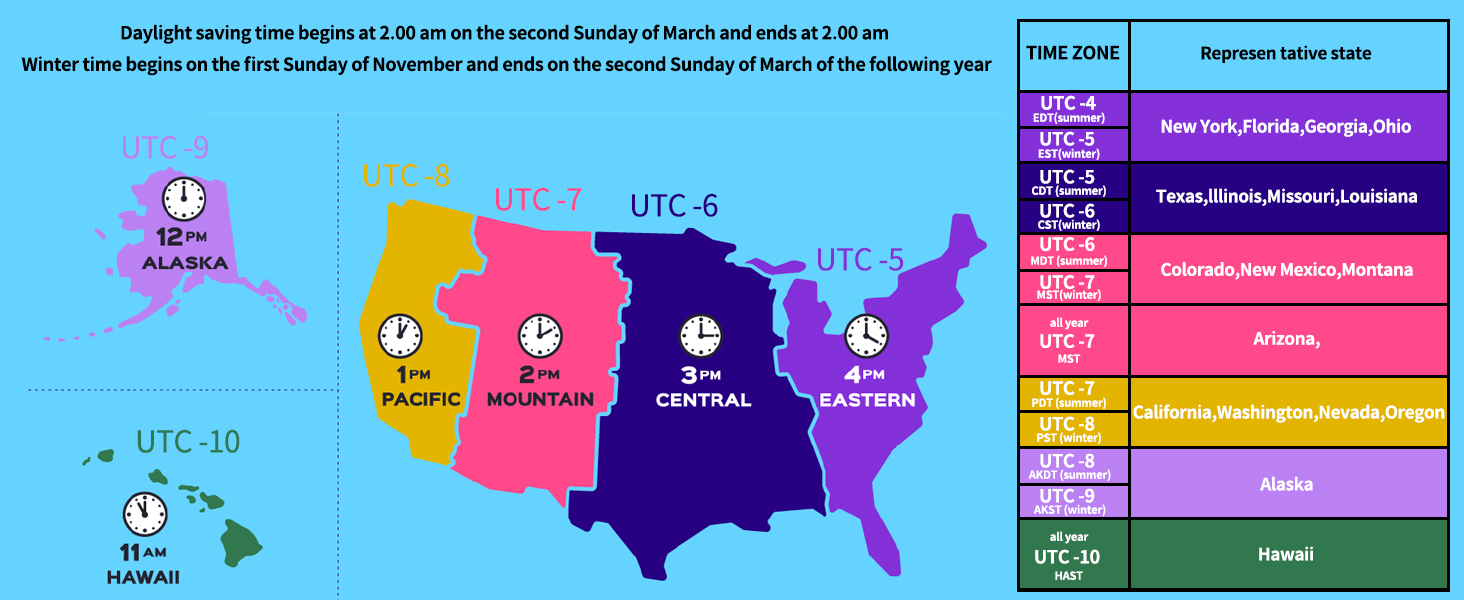
Image: A map illustrating the time zones across the United States, including Alaska and Hawaii, with a table listing representative states for each time zone and notes on daylight saving time changes.
4. Auto Backlight and Time Calibration
The BKV100A features an auto backlight that adjusts for day and night visibility. It also supports GPS automatic time calibration, ensuring your device always displays the correct time.
- During the day, the backlight can be turned off to conserve battery power.
- At night, the backlight can be turned on to improve readability of cycling data.

Image: Two side-by-side views of the Bikevee BKV100A display, one showing the screen with the backlight off (suitable for daytime to save battery) and the other with the backlight on (for clearer visibility at night).
5. Sensor Compatibility (Bluetooth & ANT+)
The Bikevee BKV100A supports wireless connectivity with various cycling sensors via Bluetooth 5.4 and ANT+ protocols. This allows for enhanced data collection, including:
- Heart Rate Monitors (arm bands, chest straps)
- Sensores de cadência
- Sensores de velocidade
- Power Meters (foot pedal, crank-based)
Multiple sensors can be connected simultaneously to provide a comprehensive overview of your ride performance.

Image: An illustration depicting the Bikevee BKV100A's compatibility with various ANT+ sensors, including heart rate monitors, arm heart rate bands, foot pedal power meters, cadence/speed sensors, and power meters, all connected to a cyclist on a bike.
6. Posicionamento GPS
The BKV100A supports 5 satellite systems (GPS, BDS, Glonass, Galileo, QZSS) for fast and stable positioning, ensuring accurate tracking of your location and speed.

Image: A graphic showing the Bikevee BKV100A connected to five different satellite systems (GPS, BDS, Glonass, Galileo, QZSS) for enhanced positioning accuracy, with a cyclist riding in the background.
7. Data Sync to Strava
After each ride, ensure you stop recording data by long-pressing the left button. This allows the data to be uploaded to the Link-S app. If data is not stopped, it may merge with the next ride's data.
You can export ride data as a .GPX file via the Link-S app and sync it directly to Strava through Bluetooth. The Link-S app also allows you to view various ride data, automatically upload to Strava, share ride images on social media, and share GPX files.

Image: Multiple smartphone screenshots displaying the features of the Link-S app, including detailed ride data visualization, map tracking, and options for sharing and syncing data with platforms like Strava.
Manutenção
1. Impermeabilização (IPX7)
The Bikevee BKV100A features an IPX7 waterproof rating, meaning it is protected against temporary immersion in water (up to 1 meter for 30 minutes). This ensures reliable performance in various weather conditions, including rain.
Caution: Do not immerse the device in water for extended periods.

Image: The Bikevee BKV100A bike computer mounted on handlebars, with water droplets on its screen, illustrating its IPX7 waterproof capability during a rainy condition.
2. Limpeza
Limpe o dispositivo com um pano macio, damp pano. Evite usar produtos de limpeza abrasivos ou solventes que possam danificar a tela ou o casing.
3. Cuidados com a bateria
The device uses a Lithium Ion battery. For optimal battery life, avoid extreme temperatures and fully discharge and recharge the device periodically if not used for extended periods.
Solução de problemas
| Problema | Possível causa | Solução |
|---|---|---|
| O dispositivo não liga | Bateria fraca; dispositivo travado | Charge the device. If still unresponsive, long press the power button for 10-15 seconds to force a restart. |
| GPS signal not found | Obstruído view of sky; Initial connection time | Vá para uma área aberta com vista desimpedida. view of the sky. The first connection may take longer. Ensure device firmware is updated. |
| Cannot connect to Link-S app | Bluetooth off; Incorrect pairing; App issue | Ensure Bluetooth is enabled on your phone and device. Restart both devices. Re-attempt pairing. Check for app updates. |
| External sensor not connecting | Sensor battery low; Sensor out of range; Incorrect pairing | Check sensor battery. Ensure sensor is active and within range. Re-pair the sensor through the device settings. |
| Ride data not syncing to Strava | Ride not stopped; Link-S app not connected to Strava | Ensure you long-pressed the left button to stop the ride. Verify Link-S app is correctly linked to your Strava account. |
Especificações
- Marca: Bicicleta Vee
- Modelo: BKV100A
- Cor: Preto
- Dimensões do produto: 1.97"C x 0.63"L x 3.15"A (50 mm x 16 mm x 80 mm)
- Peso do item: 0.17 libras (aprox. 77g)
- Tamanho da tela: 2.6 polegadas
- Tipo de exibição: LCD
- Duração da bateria: Até 50 horas
- Composição da célula da bateria: Íon de lítio
- Tipo de sensor: GPS sensor, Speed/Cadence Sensor (external)
- Tecnologia de conectividade: Bluetooth 5.4, AN+
- Classificação de Proteção Internacional: IPX7 (à prova d'água)
- Tipo de montagem: Suporte para guidão
- Interface Humana Entrada: Botões
- Material: Plástico
- Usuários sugeridos: Unissex-adulto
- Tipo de esporte: Ciclismo
Informações de garantia
The Bikevee BKV100A GPS Bike Computer comes with a garantia de dois anos A garantia é válida a partir da data da compra. Esta garantia cobre defeitos de fabricação e mau funcionamento em condições normais de uso. Não cobre danos causados por uso indevido, acidentes, modificações não autorizadas ou manutenção inadequada.
For warranty claims or service, please retain your proof of purchase and contact Bikevee customer support.
Suporte ao cliente
If you encounter any issues or have questions regarding your Bikevee BKV100A GPS Bike Computer that are not addressed in this manual, please visit the official Bikevee website or contact their customer support team for assistance. Contact information can typically be found on the product packaging or the brand's official online store page.
For further assistance, you may also refer to the digital user manual available at: Bikevee BKV100A User Manual (PDF)


