Introdução
Thank you for choosing the vretti PB821 Portable Thermal Printer. This compact and versatile device is designed for convenient, inkless printing from various devices, including smartphones, tablets, and laptops. Its portability makes it ideal for business, office, home, and travel use. This manual provides essential information on setting up, operating, maintaining, and troubleshooting your printer to ensure optimal performance.
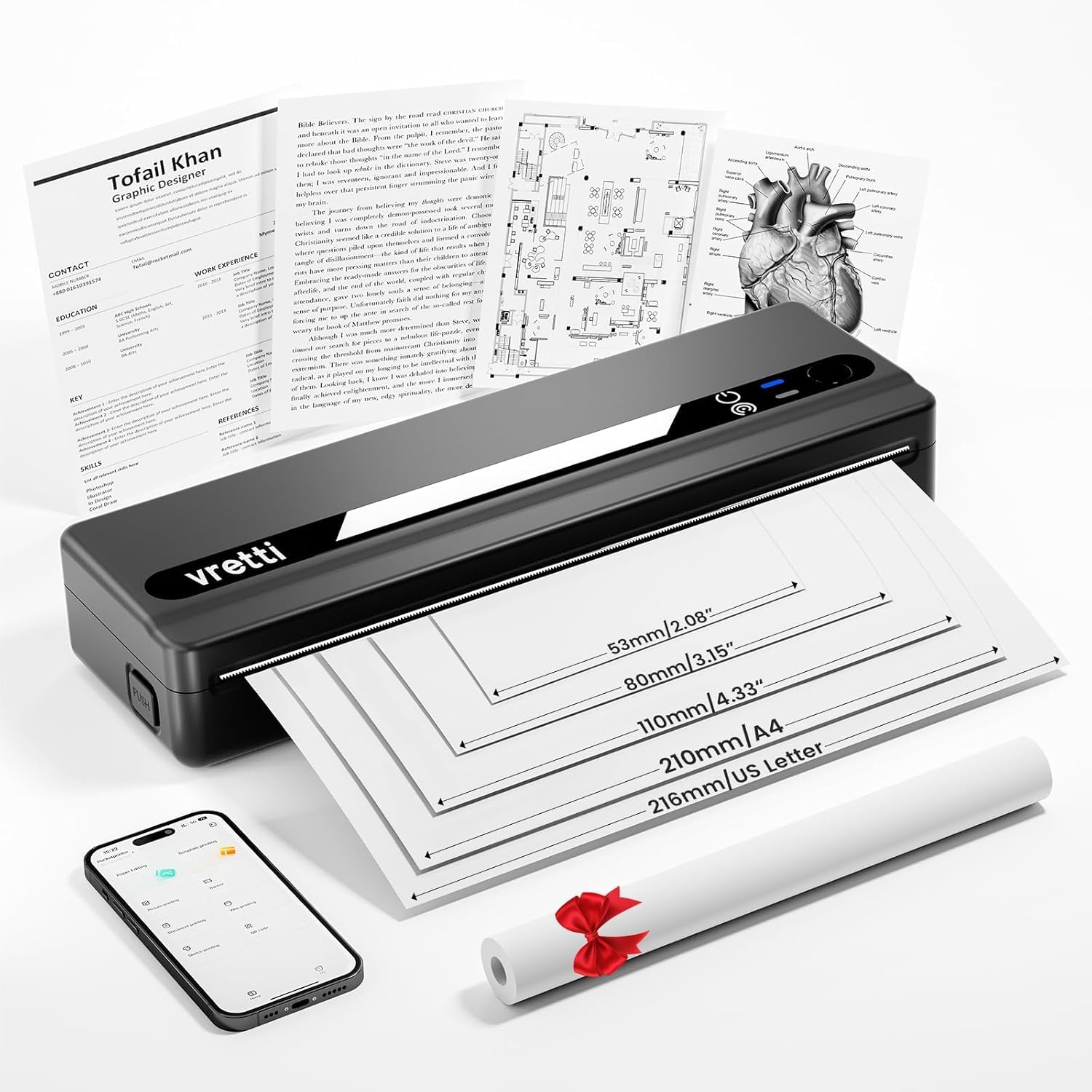
Image: The vretti PB821 Portable Thermal Printer, a sleek black device, ready for use.
Conteúdo da embalagem
Ao abrir a embalagem, verifique o conteúdo para garantir que todos os itens estejam presentes:
- vretti PB821 Portable Thermal Printer
- 1 Roll of Thermal Paper
- Cabo de carregamento USB-C
- Manual do usuário
Produto acimaview
Principais características
- Impressão sem fio Bluetooth: Connects wirelessly to phones and tablets via the "XLifePro" app.
- Portátil e compacto: Small and lightweight design for easy transport.
- Cost-effective Inkless Printing: Utilizes advanced thermal printing technology, eliminating the need for ink, toner, or ribbons.
- High-quality Printing: Delivers clear prints with a 203 DPI resolution.
- Bateria de longa duração: Built-in 1500mAh rechargeable battery supports printing up to 223 A4 sheets on a full charge.
- Suporte para papel de vários tamanhos: Compatible with A5, A4, Letter, and 2-4 inch labels.
Opções de conectividade

Image: The vretti PB821 printer supports both Bluetooth and USB connections for versatile use with Android, iOS, iPad, Windows, Mac OS, Linux, and Chromebook devices.
The vretti PB821 printer offers flexible connectivity, allowing you to print wirelessly via Bluetooth from mobile devices or directly via USB from computers. This ensures compatibility across various operating systems and devices.
Design portátil

Image: A visual comparison highlighting the compact and portable design of the vretti PB821 printer against a larger, traditional printer, emphasizing its convenience.
The PB821 is designed for maximum portability, making it easy to carry in a backpack or bag. Its compact form factor does not compromise on functionality, offering easy setup and smooth, inkless printing.
Configurar
1. Carregamento inicial
Before first use, fully charge the printer using the provided USB-C cable. Connect the cable to the printer's USB-C port and a compatible power adapter (not included) or computer USB port. The charging indicator light will show the charging status.

Image: Visual representation of the printer's 1500mAh battery capacity, USB-C charging, and its ability to print up to 223 A4 sheets on a single charge.
2. Carregando o papel térmico
The vretti PB821 supports various thermal paper types. To load paper:
- Abra a tampa do compartimento de papel da impressora.
- Insira o papel térmico com o lado imprimível voltado para cima. Certifique-se de que o papel esteja alinhado corretamente dentro das guias.
- Feche a tampa de papel com segurança.

Image: The vretti PB821 printer showcasing its compatibility with different thermal paper types, including folding thermal paper and roll paper, along with various paper sizes.
3. Conexão via Bluetooth (Dispositivos Móveis)
To print wirelessly from your smartphone or tablet:
- Download the "XLifePro" app from the App Store (iOS) or Google Play Store (Android).
- Turn on the vretti PB821 printer. The Bluetooth indicator light will blink.
- Open the XLifePro app, navigate to the device connection settings, and select the PB821 printer from the list of available Bluetooth devices.
- Assim que a conexão for estabelecida, a luz indicadora do Bluetooth ficará acesa continuamente.

Image: Step-by-step guide on connecting the vretti PB821 printer via Bluetooth, including downloading the XLifePro app and pairing the device.
4. Conexão via USB (Computadores)
To print from your Windows, Mac OS, or Linux computer:
- Download the appropriate printer driver from the official vretti website: vrettitech.com/pages/p83-support.
- Install the driver on your computer following the on-screen instructions.
- Connect the vretti PB821 printer to your computer using the provided USB-C cable.
- The computer should recognize the printer, and you can now select it as your printing device.

Image: Instructions for USB connection, detailing driver download from the vretti website and connecting the PB821 printer to a laptop.
Instruções de operação
Printing from Mobile Devices
Uma vez conectado via Bluetooth:
- Abra o documento, a imagem ou file you wish to print within the XLifePro app. The app supports various formats including TXT, PDF, Excel, and Word documents.
- Select the print option within the app.
- Confirm print settings such as paper size and quantity.
- Initiate printing.
Printing from Computers
Once connected via USB and drivers are installed:
- Abra o documento ou file Você deseja imprimir no seu computador.
- Select the print option from your application (e.g., File > Imprimir).
- Choose "vretti PB821" from the list of available printers.
- Adjust print settings as needed (e.g., paper size, orientation).
- Clique em "Imprimir".
Supported Paper Types and Sizes
The PB821 printer is compatible with various thermal paper types and sizes, including:
- A4 (210mm)
- Letter (8.5" x 11" / 216mm)
- A5 (148mm)
- B5 (175mm)
- 2-inch (53mm) labels
- 3-inch (80mm) labels
- 4-inch (110mm) labels

Image: The vretti PB821 printer demonstrating its support for multiple paper sizes, including standard document sizes and various label sizes.
Using the XLifePro App
The XLifePro app provides additional functionalities beyond basic printing, including:
- Access to multiple templates for creative printing.
- Options for document printing, picture printing, and more.
- Customization features for various printing needs.

Image: Screenshots of the XLifePro app interface, illustrating its diverse range of templates and printing options.
Manutenção
Limpeza da impressora
To maintain print quality and prolong the printer's lifespan:
- Ensure the printer is turned off and disconnected from power before cleaning.
- Use um pano macio e sem fiapos levementeampened with water or isopropyl alcohol to gently wipe the print head and paper path.
- Não utilize produtos de limpeza abrasivos ou solventes.
- Allow the printer to dry completely before turning it on.
Cuidados com a bateria
Para otimizar a duração da bateria:
- Evite descarregar completamente a bateria com frequência.
- Guarde a impressora em local fresco e seco quando não estiver em uso por longos períodos.
- Charge the printer regularly, even if not in frequent use, to prevent deep discharge.
Solução de problemas
| Emitir | Possível causa | Solução |
|---|---|---|
| A impressora não liga | Bateria fraca; botão liga/desliga não pressionado corretamente | Charge the printer; Press and hold the power button for a few seconds |
| Não é possível conectar via Bluetooth | Bluetooth desligado no dispositivo; Impressora não está em modo de emparelhamento; Problema com o aplicativo | Ensure Bluetooth is enabled; Restart printer; Reinstall XLifePro app |
| Qualidade de impressão ruim | Bateria fraca; Cabeça de impressão suja; Tipo de papel incorreto | Charge printer; Clean print head; Use recommended thermal paper |
| Atolamento de papel | Carregamento incorreto do papel; Papel danificado | Turn off printer, carefully remove jammed paper, reload correctly; Use undamaged paper |
| Impressora não reconhecida pelo computador | Missing/incorrect drivers; Faulty USB cable/port | Install/reinstall drivers from vretti website; Try a different USB cable/port |
Especificações
| Recurso | Detalhe |
|---|---|
| Modelo | PB821 |
| Marca | vretti |
| Tecnologia de impressão | Térmico |
| Tecnologia de Conectividade | Bluetooth, USB |
| Resolução máxima de impressão | 203 DPI (Black and White) |
| Mídia impressa | Papel térmico (liso) |
| Tamanhos de folha suportados | 2'', 3'', 4'', A4, 8.5''x 11'' US Letter |
| Capacidade máxima de entrada de folhas | 30 folhas |
| Capacidade da bateria | 1500mAh (íon de lítio) |
| Dimensões do produto | 25.7 x 7 x 4.7 cm |
| Peso do item | 900 g |
| Impressão frente e verso | Não |
| Cor da tinta | Preto |
Garantia e Suporte
The vretti PB821 Portable Thermal Printer comes with a standard manufacturer's warranty. For specific warranty details, technical support, or service inquiries, please refer to the warranty card included in your package or visit the official vretti website. Guarde o recibo de compra como comprovante para solicitações de garantia.
Vídeo do produto
Video: An official product video demonstrating the features and usage of the vretti PB821 Portable Thermal Printer, including its compact design, wireless connectivity, and printing capabilities.


