1. Introdução
The Brother DCP-L2640DW is a compact, high-performance monochrome laser all-in-one printer designed for home offices and small workgroups. This manual provides essential information for setting up, operating, maintaining, and troubleshooting your printer to ensure optimal performance.
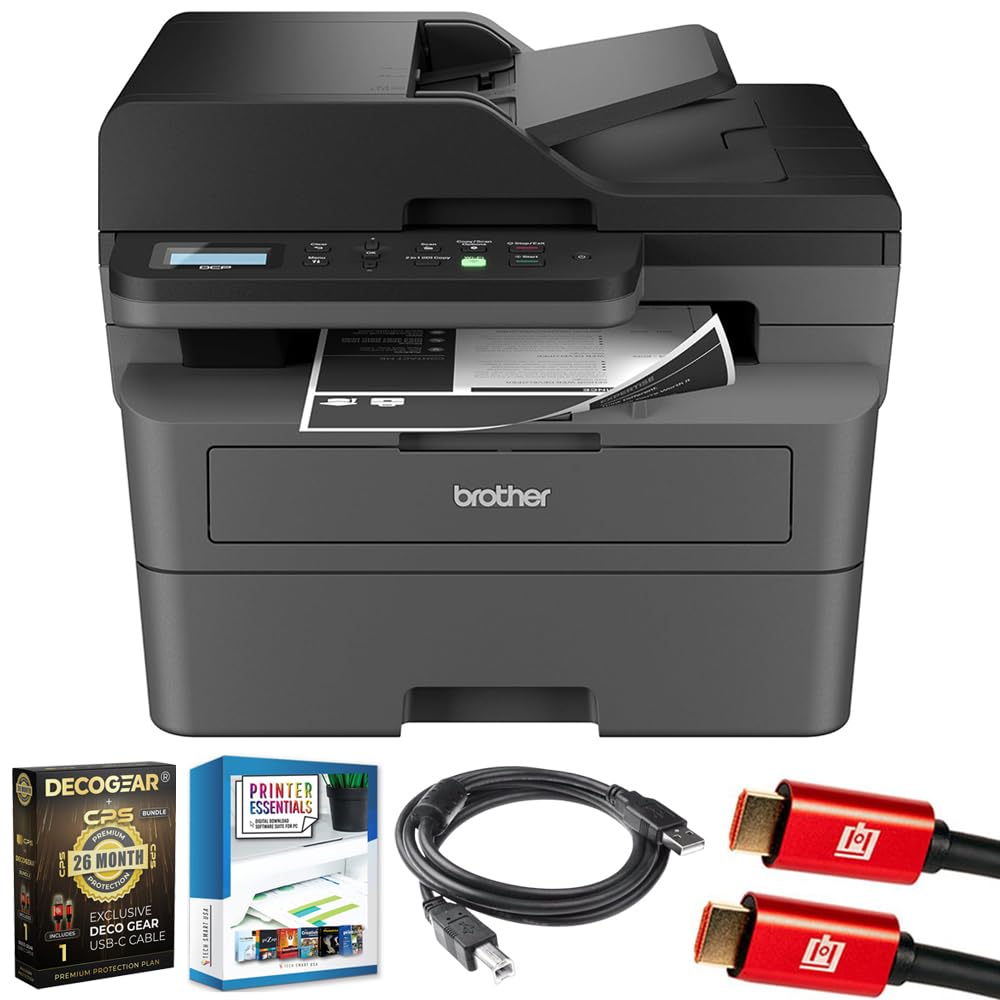
Image 1.1: Brother DCP-L2640DW Compact Monochrome Laser Printer
2. Principais características
- Funcionalidade 3 em 1: Print, copy, and scan capabilities in a compact design.
- Velocidades de impressão rápidas: Delivers up to 36 pages per minute for efficient task completion.
- Impressão Duplex Automática: Built-in two-sided printing to save time and paper.
- 50-Sheet Automatic Document Feeder (ADF): Para digitalização e cópia eficientes de várias páginas.
- High-Capacity Paper Handling: 250-sheet paper tray plus a manual feed slot for diverse media types.
- Opções flexíveis de conectividade: Dual-band Wi-Fi, Ethernet, USB, and mobile printing via Brother Mobile Connect, AirPrint, Mopria, and Wi-Fi Direct.
- Advanced Network Security: Features like TLS/SSL, SNMP v3, and IP filtering for secure operation.

Imagem 2.1: Terminadoview of the Brother DCP-L2640DW's key features including print speed, connectivity, and compact design.
3. O que está na caixa
- Brother DCP-L2640DW Monochrome Laser Printer
- Starter Black Toner Cartridge (approx. 700 pages)
- Brother DR830 Drum Unit (approx. 15,000 pages)
- Cabo de alimentação CA
- Documentation (Quick Setup Guide, Product Safety and Protection Information)
4. Configuração
4.1. Desembalagem
- Retire cuidadosamente a impressora da embalagem.
- Remova todas as fitas protetoras e materiais de embalagem da parte externa e interna da impressora.
4.2. Instalação do cartucho de toner e da unidade de tambor
- Abra a tampa frontal da impressora.
- Remove the toner cartridge and drum unit assembly from the printer.
- Unpack the new toner cartridge and drum unit.
- Insira o cartucho de toner firmemente na unidade de cilindro até que ele se encaixe no lugar.
- Slide the green tab on the drum unit from left to right several times to clean the corona wire. Return the tab to the home position.
- Reinstall the toner cartridge and drum unit assembly into the printer.
- Feche a tampa frontal.
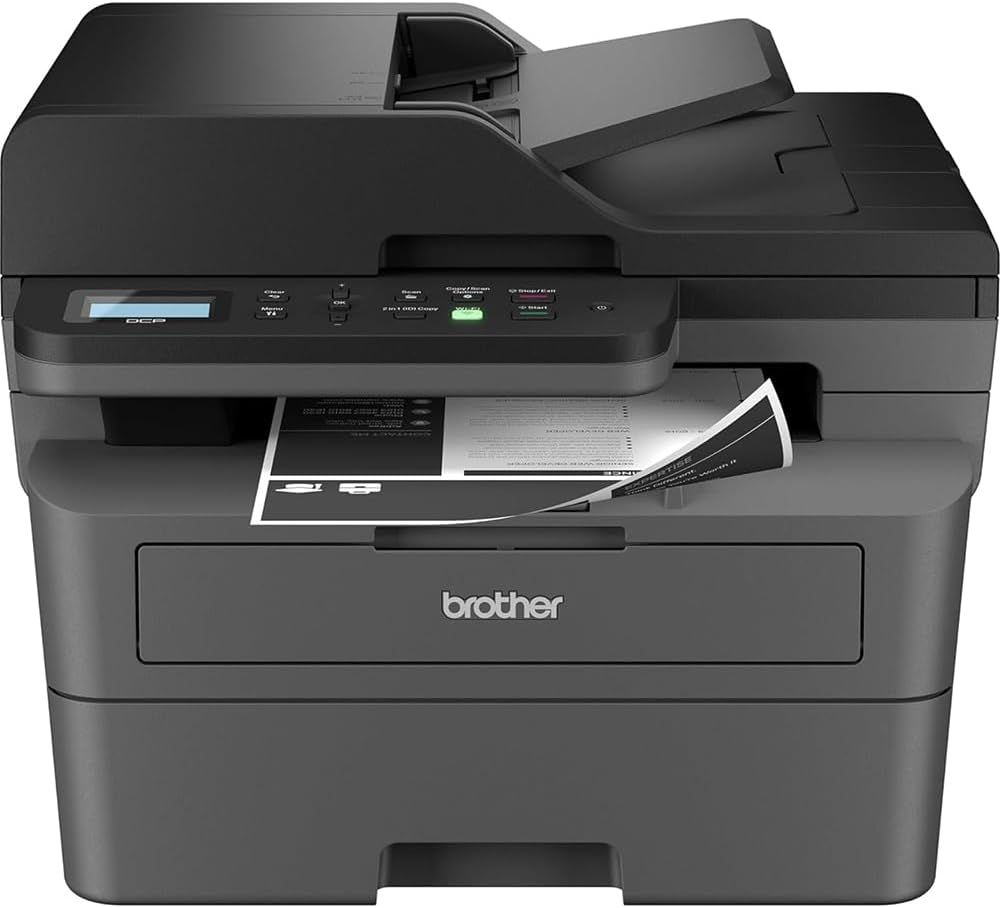
Image 4.1: The Brother DCP-L2640DW printer with the front cover open, showing the toner cartridge and drum unit assembly.
4.3. Conexão de energia
- Connect the AC power cord to the printer's power input.
- Conecte a outra extremidade do cabo de alimentação a uma tomada elétrica aterrada.
- Pressione o botão liga/desliga para ligar a impressora.
4.4. Initial Setup & Connectivity
Follow the on-screen instructions on the printer's LCD display to complete the initial setup, including language selection and date/time settings.
- Configurar Wi-Fi: Navigate to the network settings on the printer's control panel, select your Wi-Fi network, and enter the password.
- Conexão Ethernet: Conecte um cabo Ethernet do seu roteador ou hub de rede à porta Ethernet da impressora.
- Conexão USB: Conecte um cabo USB do seu computador à porta USB da impressora.
- Instalação do driver: Install the printer drivers from the included CD-ROM or download them from the official Brother support website.
Vídeo 4.1: Um produto sobreview video demonstrating the Brother DCP-L2640DW printer's features and ease of use.
5. Instruções de operação
5.1. Impressão de documentos
- Load paper into the 250-sheet paper tray or the manual feed slot.
- From your computer or mobile device, open the document you wish to print.
- Selecione 'Imprimir' no menu do aplicativo.
- Choose your Brother DCP-L2640DW printer.
- Adjust print settings (e.g., number of copies, duplex printing) as needed.
- Clique em 'Imprimir'.
5.2. Cópia de Documentos
- Place your document face down on the scanner glass or face up in the Automatic Document Feeder (ADF).
- On the printer's control panel, press the 'Copy' button.
- Use the arrow keys to select the number of copies or adjust other settings.
- Pressione 'Iniciar' para começar a copiar.

Image 5.1: The Brother DCP-L2640DW highlighting its Automatic Document Feeder for multi-page tasks.
5.3. Digitalização de documentos
- Place your document face down on the scanner glass or face up in the ADF.
- On the printer's control panel, press the 'Scan' button.
- Select your desired scan destination (e.g., PC, email, cloud).
- Ajuste as configurações de digitalização (por exemplo, resolução, modo de cor) conforme necessário.
- Pressione 'Iniciar' para começar a digitalização.
5.4. Impressão Móvel
The Brother DCP-L2640DW supports various mobile printing solutions:
- Aplicativo Brother Mobile Connect: Download the app to manage your printer, print, and scan from your smartphone or tablet.
- Apple AirPrint: Print directly from your Apple iOS device without installing drivers.
- Serviço de Impressão Mopria: Imprima a partir de dispositivos Android com certificação Mopria.
- Wi-Fi Direct: Print directly from your mobile device to the printer without needing a router.

Image 5.2: The Brother Mobile Connect App interface, showing options for document print, photo print, scan, copy, and toner monitoring.
6. Manutenção
6.1. Toner Replacement
When the toner is low or empty, the printer's display will indicate that the toner cartridge needs to be replaced. Always use genuine Brother toner cartridges for optimal performance and print quality.
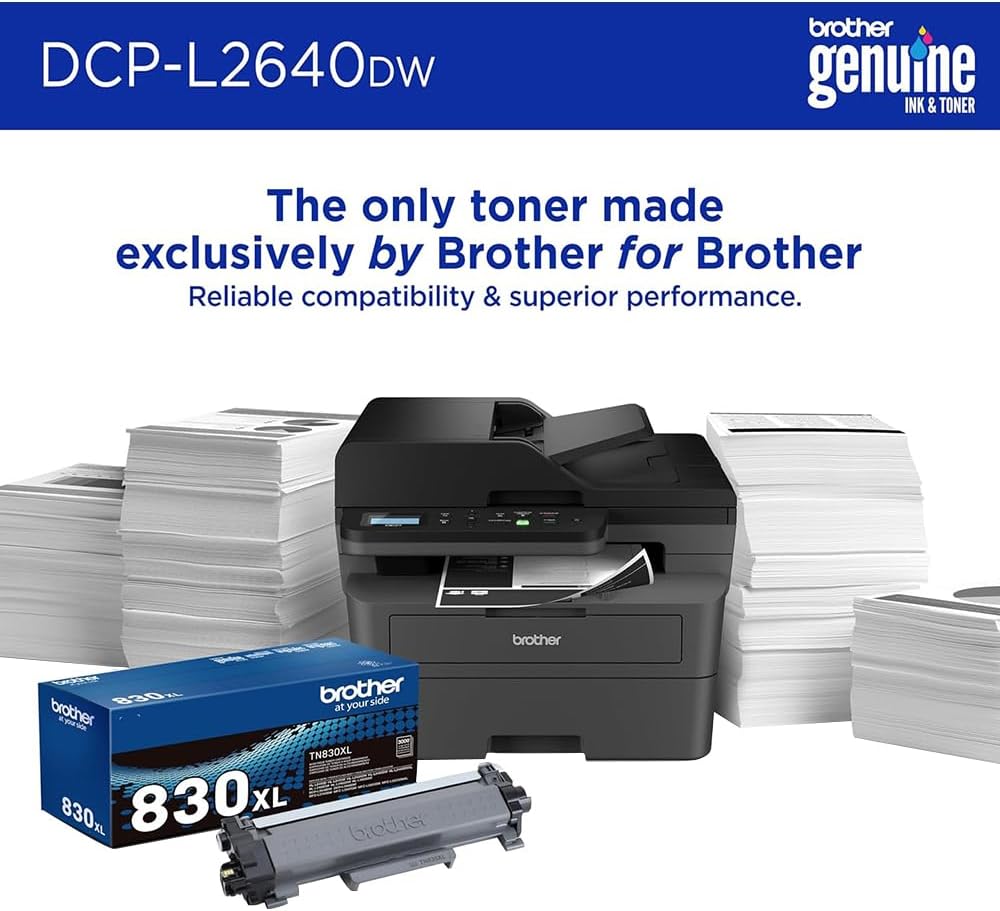
Image 6.1: Brother Genuine Ink & Toner packaging, emphasizing reliable compatibility and superior performance.
6.2. Substituição da unidade de tambor
The drum unit is a separate consumable that needs to be replaced periodically, typically after approximately 15,000 pages. The printer will notify you when it's time to replace the drum unit.
6.3. Limpeza
- Exterior: Limpe a parte externa da impressora com um pano macio e sem fiapos.
- Vidro do scanner: Limpe o vidro do scanner com um pano macio e sem fiapos umedecido com limpa-vidros.
- Corona Wire: Regularly clean the corona wire inside the drum unit by sliding the green tab.
7. Solução De Problemas
- Atolamentos de papel: Follow the on-screen instructions or refer to the printer's documentation to clear paper jams from various access points.
- Problemas de conectividade: Ensure the printer is connected to the correct network (Wi-Fi or Ethernet) or directly to the computer via USB. Restarting the printer and router can often resolve temporary connection problems.
- Má qualidade de impressão: Check toner levels, clean the corona wire, and ensure you are using appropriate paper for your print job.
- Mensagens de erro: Refer to the printer's LCD display for specific error codes and consult the online manual or Brother support for solutions.
8. Especificações
| Recurso | Detalhe |
|---|---|
| Número do modelo | DCP-L2640DW |
| Tecnologia de impressão | Laser |
| Saída da impressora | Monocromático |
| Velocidade máxima de impressão monocromática | 36 ppm |
| Resolução máxima de impressão em preto e branco | 1200 x 1200 pontos por polegada |
| Impressão Duplex Automática | Sim |
| Tipo de scanner | Plataforma |
| Capacidade máxima de entrada de folhas | 250 folhas |
| Capacidade do alimentador automático de documentos (ADF) | 50 folhas |
| Tecnologia de Conectividade | USB, Ethernet, Dual-band Wi-Fi |
| Cartucho Compatível | TN830, TN830XL |
| Dimensões do produto | 15.7"P x 16.1"L x 12.5"A |
| Peso | Not specified in provided data, typically around 20-30 lbs for similar models. |
9. Garantia e Suporte
The Brother DCP-L2640DW Monochrome Laser Printer comes with a Limited Warranty. For specific warranty terms and conditions, please refer to the documentation included with your product or visit the official Brother support website.
Para suporte técnico, downloads de drivers e recursos adicionais, visite o Suporte Brother Website.


