

Guia do usuário do controle de persianas inteligentes Pulse PRO Automate RTI

AUTOMATE PULSE PRO OVERVIEW
Eleve sua experiência com o Automate integrando perfeitamente as persianas motorizadas Automate aos Sistemas de Controle RTI. O Automate Pulse PRO oferece uma integração poderosa com controle discreto das persianas e comunicação bidirecional, fornecendo atualizações em tempo real sobre a posição das persianas e o nível da bateria. Com conectividade Ethernet (CAT 5) e sem fio de 2.4 GHz, o Pulse PRO garante uma integração suave com a automação residencial por meio de uma porta RJ45 de fácil acesso localizada na parte traseira do hub. Cada hub suporta até 30 persianas, tornando-se uma solução versátil para qualquer configuração de automação residencial.
COMEÇANDO:
In order to integrate your motorized window treatments with RTI Control System, you will need to have:
- Downloaded the free Automate Pulse PRO via the Apple App Store (available under iPhone /iPad apps) or the Google Play Store.
- Adquiriu-se um ou mais Automate Pulse PRO, dependendo do tamanho do espaço, e repetidores adicionais, se necessário.
- Integre suas cortinas e persianas motorizadas ao aplicativo Automate Shades.
INSTRUÇÕES INCLUÍDAS:
- Set up instructions for both the Automate Shades App & Automate Pulse PRO.
- RTI Driver Installation Specification.
- RTI Control System Driver Operating Guide.
- Integration Diagram.
- Integration FAQ’s.
HISTÓRICO DE REVISÃO:
- Initial release of the driver.
INFORMAÇÕES GERAIS:
- The Automate Pulse PRO Operating Guide for information on setup of the system. This driver is for control and feedback only. Setup of the Automate Pulse PRO Hub must be completed prior to setting up driver. Contact Rollease Acmeda for information on how to complete setup using the Hub and App. This driver is for the Automate Pulse PRO Hub only and control motors (i.e. shades) via TCP Communication.
CONFIGURAÇÕES DE CONEXÃO: The Network TCP is the only method for communicating with the Pulse PRO Hub. Enter the IP Address of the Hub in the TCP Address field.
MOTOR COUNT (i.e. Shade Count): Enter the number of motors (Shades) that this Pulse PRO is controlling using the App to have the same capability on RTI Control System Driver.
MOTOR NAME (i.e. Shade Naming): Enter a unique name for each motor (i.e. shade). When the driver is running on the processor, the Motor or Shade name is updated automatically accordingly named on the Automate Shades App.
MOTOR ADDRESS (i.e. Shade Address): Enter the motor address that corresponds to the motor (i.e. shade) to be controlled. This address is acquired during the Automate App setup on the system.
DRIVER COMMAND: The control commands are available for movement of motors (i.e. shades) up and down as well as adjusting the shade to a discrete level by entering a value as a percentage.
DRIVER VARIABLES: Feedback variables are available for initialization state, connection state, and motor (i.e. shade) specific.
DRIVER INSTALATION:
- Desembale o equipamento:
• In this case, were used XP3 Processor and a KX3 Touch Panel to exemplify the communication between the RTI Control System and Automate Pulse PRO.
• XP3 – Use provided power supply to power up processor. Also connect to network (make sure to use ethernet connection and not RS-232). If you have a POE connection, then the XP-3 can be powered that way as well.
• KX3 – Use provided power supply (has a RJ-45 end) to power the KX3 through the Control Port on the back of the unit. Connect this to the network as well. If you have a POE connection, then the KX3 can be powered that way as well. - Descompacte o file contendo o driver e sample file. Copie o driver file (Rollease Pulse.rtidriver) to Integration Designer’s Control Driver Library (Documents\Integration Designer\Control Drivers). We will open the sample file in Integration Designer APEX
- Load Integration Designer APEX onto your computer and launch software.
- Open provided Integration Designer APEX file (Rollease Pulse Sample File.apex) do File menu.

- Use the Automate Shades App to get the Hub IP address. On Manage Hub screen, you have the full Hub information. Enter “Hub IP Address” as one variable on the connection settings on Integration Designer Software.

- Neste exampForam utilizados apenas 2 motores/persianas. O "número de motores" determinará quantos motores estarão disponíveis na lista abaixo dele. Adicione um "Nome do Motor" exclusivo para cada motor nessa lista e insira o "Endereço do Motor" para cada persiana, de acordo com a disponibilidade no aplicativo Automate Shades na tela do dispositivo.

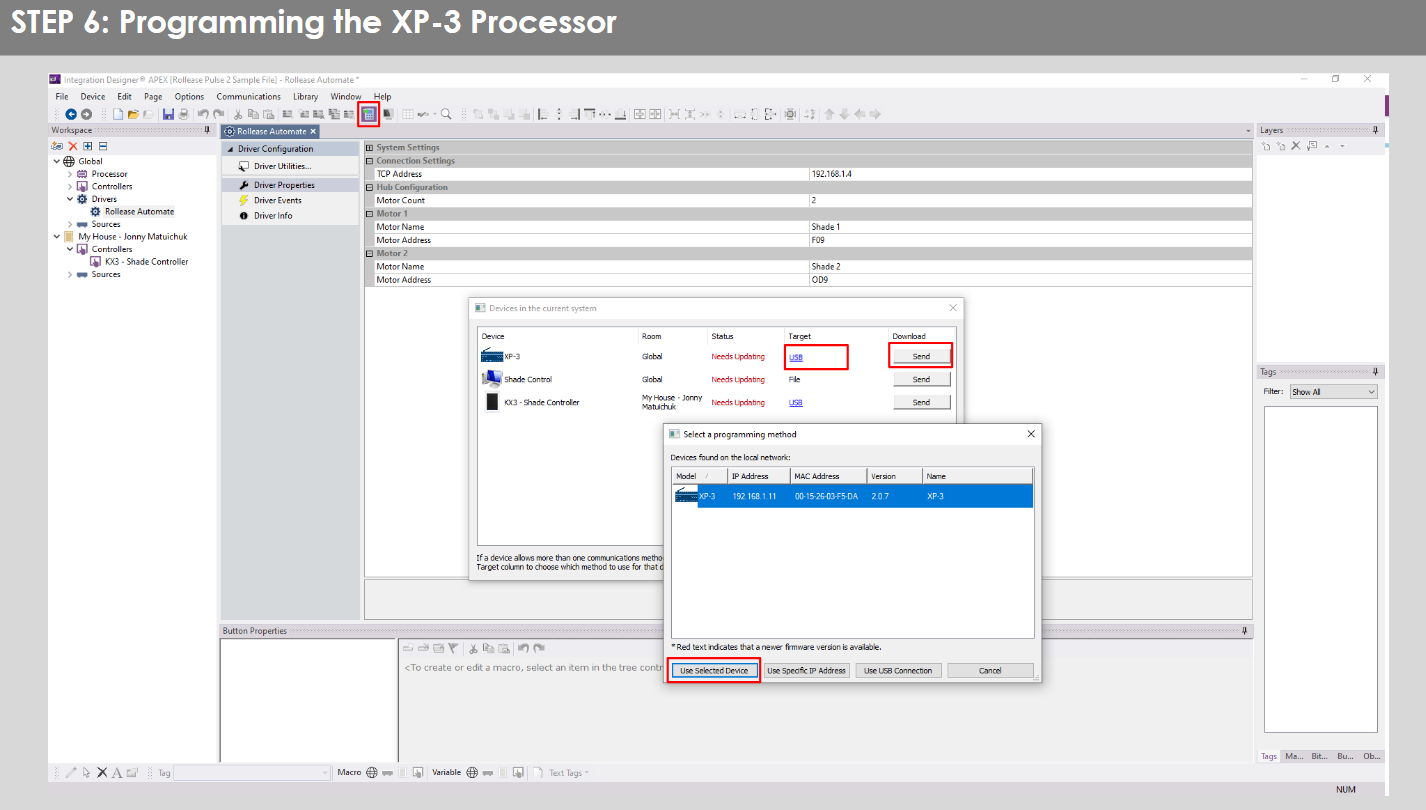
- Click on the “Download” icon from the top toolbar. This will open a screen with all devices available on Integration Designer. After that, click on the “USB” link that corresponds to your processor (in this case for the XP-3) in the Target column. When clicking that, a new window will open that shows all processors in your system. Select that one it corresponds to your processor and click on “Use Select Device”. Then after the window closes click the “Send” button in the Download column.
- Repeat the same process for KX3 Touch Pad.

- There is also a Virtual Panel control provided in the file que criará um controlador para seu computador.


- To launch the Virtual Panel, click the “Send” button like you did with the previous devices. Since this is a virtual device you will be directed to save the Virtual Panel to a location on your computer.

- Once you save the Virtual Panel it will launch.

Erros comuns:
- Inserir o endereço IP errado na linha de configuração "Endereço IP".
If you’re failing to communicate with the devices, double check this!
CONEXÃO DO SISTEMA DE CONTROLE RTI:

PERGUNTAS FREQUENTES:
Q. No Pulse PRO detected.
A. Certifique-se de que seu Automate Pulse PRO esteja conectado à rede correta e que um endereço IP esteja disponível e que a comunicação com a rede continue sendo feita através do aplicativo Automate Shades.
Q. Os limites de sombra não estão definidos corretamente.
A. Calibrate shade limits with your Rollease Acmeda remote before setting the appropriate open and close time within RTI Control System.
P. Shade não está se movendo.
A. Make sure the selected Pulse PRO Hub is the correct Pulse PRO Hub for the shade to be controlled. Confirm the correct bindings are set in the RIT Control System connections tab between the Pulse PRO Hub and Shade drivers.
Q. We get unexpected responses from the RTI system, or “?” symbols
A. Certifique-se de que todas as conexões usando a porta ethernet ou Wi-Fi estejam funcionando corretamente. Sabe-se que a conexão perdida produz resultados indesejados ou inesperados.
RECURSOS DE APOIO:
Para obter mais assistência, contacte o seu revendedor, visite o nosso website em www.rolleaseacmeda.com

Documentos / Recursos
 |
AUTOMATE Pulse PRO Automate RTI Controle Inteligente de Cortinas [pdf] Guia do Usuário RTI, Pulse PRO Automatize o controle inteligente de cortinas RTI, Automatize o controle inteligente de cortinas RTI, Controle inteligente de cortinas, Controle de cortinas |